Before you start
- A clear, front-facing portrait you have permission to use
- A finished voice recording with one focused message
- A paid Mozify workspace with enough credits for the quote
Prepare the photo and the message
Use one clear portrait with a visible face and one finished narration. The photo sets the composition; the recording sets the words, timing and video length. Listen to the whole recording before generating.
Create your first talking video
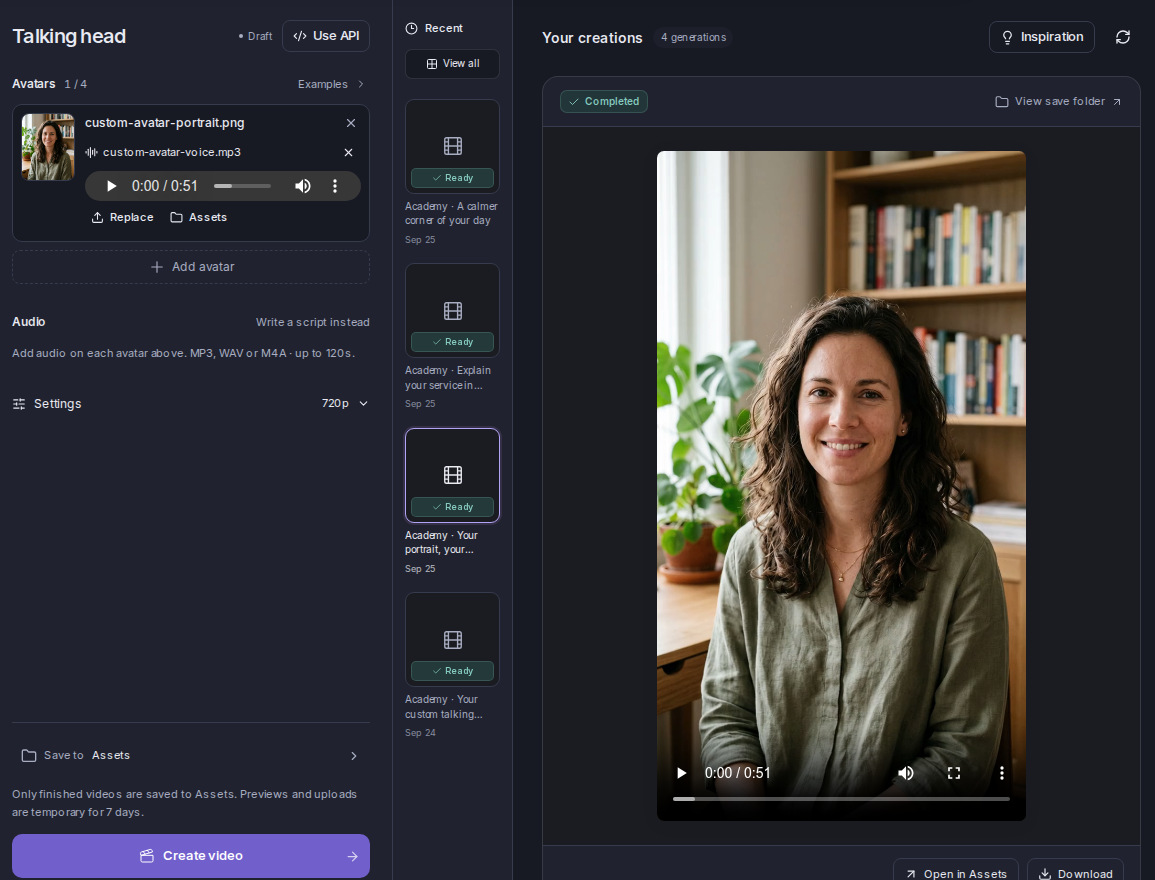
Open Talking head in the app sidebar, or use Open Talking Head at the end of this article. Add your portrait and audio using the steps below before confirming the run.
- Add your portrait using Upload image, or choose an image from your workspace assets. Check the framing and the visible face.
- Choose the uploaded-audio mode. Add the finished recording on the portrait card, then use its player to check the file.
- Choose an available resolution and the destination for your output.
- Select Create video. Review the duration and quoted credits in the confirmation dialog, then confirm once. A paid plan is required.
- Wait for the run to finish, select it in Recent and play the full result with sound.
Watch these steps in Mozify 2:20
A silent walkthrough of the real app: add the portrait and audio, check the quote, review a completed run and open the Editor. On-screen instructions are included; generation waiting time is omitted.
View the finished example, script and inputs →Check the result before editing
Check the opening, a sentence in the middle and the final phrase. The voice should be clear, the mouth should follow the speech and the ending should be complete. Also check the face, shoulders and background for distracting changes.
If pronunciation or pacing is wrong in the source audio, revise the recording first. If the face is hidden or the crop is cramped, revise the portrait. Keep the previous result and change one input at a time; another generation has its own quote.
Edit or use your finished video
For a simple introduction, download the completed video. To add titles or combine it with product footage, open Video Editor and use your saved assets. Keep a copy of the original presenter video so you can compare the final edit with the source.
See the finished example 0:52
Introduce yourself or your business without filming a new take for every message. This demonstration uses a fictional AI presenter.
Script, source inputs and production details →