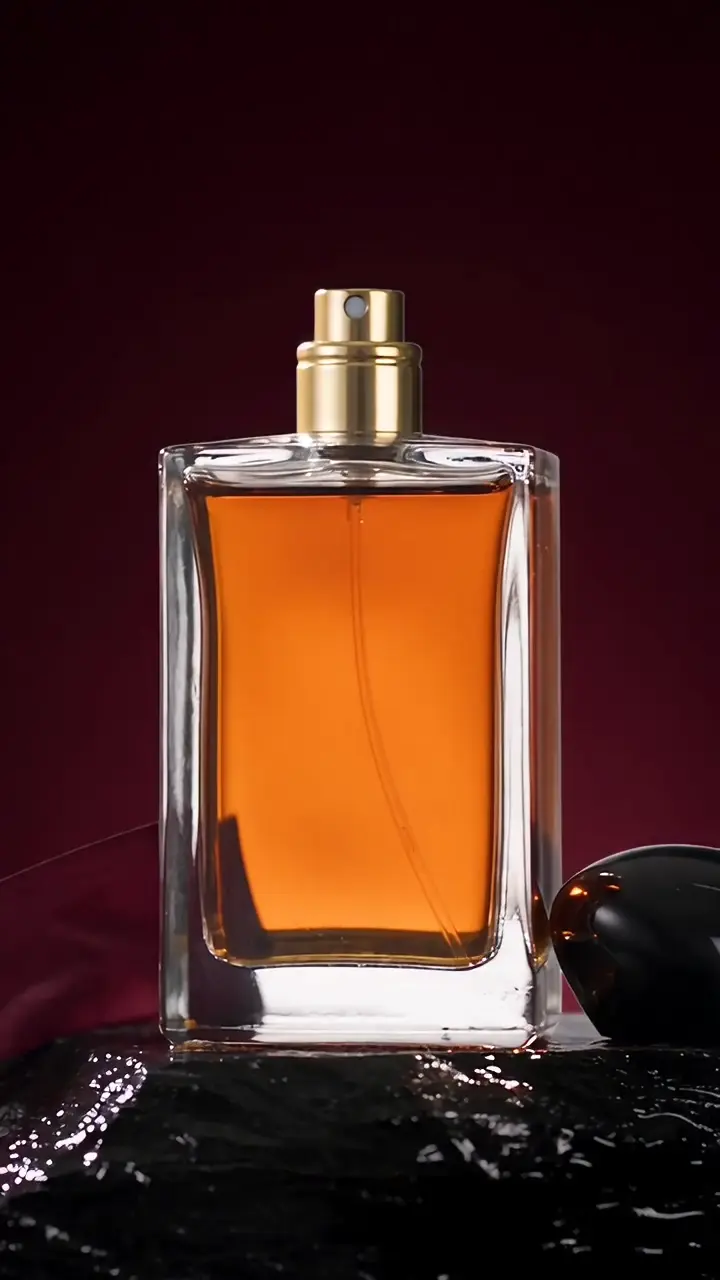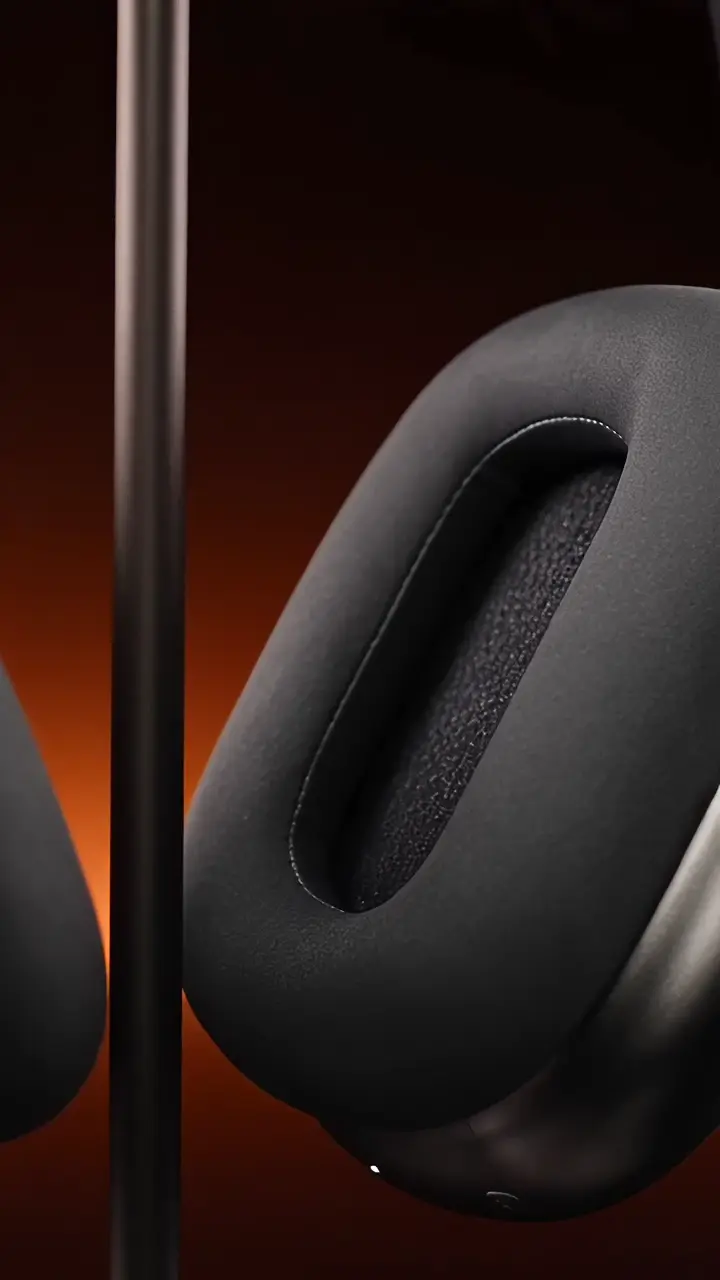
Keep the product at the center.
A reference communicates the look you want to carry into the shot. Use a product still, a styled campaign image or another supported input.
MOZIFY / REFERENCE TO VIDEO
Give an existing visual movement, atmosphere and a place in your next ad. Start from a product or scene reference and direct what happens next.

A reference communicates the look you want to carry into the shot. Use a product still, a styled campaign image or another supported input.
Describe the camera movement, action, light and pace. A restrained product reveal and an energetic lifestyle moment call for different briefs.
Use your source image for still placements and the generated clip for video. Finish titles and formats in the Editor.
MADE IN MOZIFY
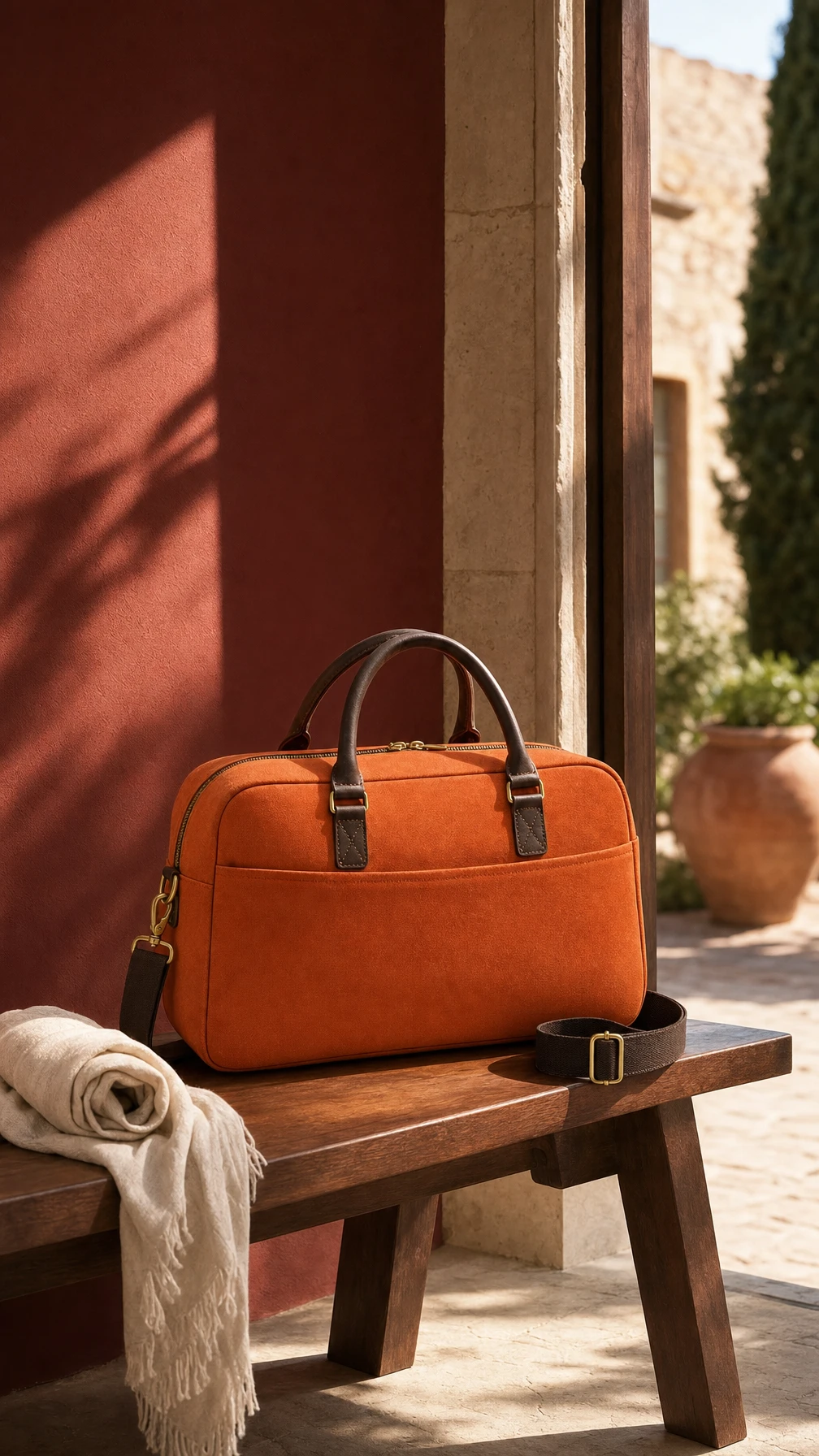
Warm canvas. Afternoon light. The feeling of getting away.
Fictional sample products. References and campaign images created with GPT Image 2. Video examples use their shown scene as the starting frame.
FROM THE FIRST STEP
Upload a reference or select an image from Assets. Choose the input mode supported by your video model.
Describe what moves and what should remain stable. Select duration, audio and resolution where available, then review the quote.
Check the product throughout the clip. Save a suitable take, add your hook in the Editor and export for the placement.
BUILT AROUND YOUR WORK
Reveal texture, packaging and shape with a considered camera move.
Carry a still-image direction into a video placement.
Use a supported reference mode to guide a scene with a presenter and product.
Inputs depend on the model. The workspace shows support for image references, starting or ending frames and, on some models, video references. Use the input mode shown for your selected model.
Your product, your message, your next ad. Start with an image and build the story in Mozify.