
 VIDEO MODEL / GOOGLE
Give each shot one job
Text, Frames and Reference generate 3–10 seconds per clip. Plan an opening, action and ending across separate shots when your story needs more time.
Explore a miniature night sky through two original Gemini Omni Flash 1.1 shots. Start with text, guide the scene with frames or references, or bring existing footage into Edit video.
Explore free, no card required. A paid plan is required to generate and export.
A felt mouse opens a miniature observatory, and a brass telescope leads into a sky of paper stars. Two original ten-second Gemini shots become one film with native sound.
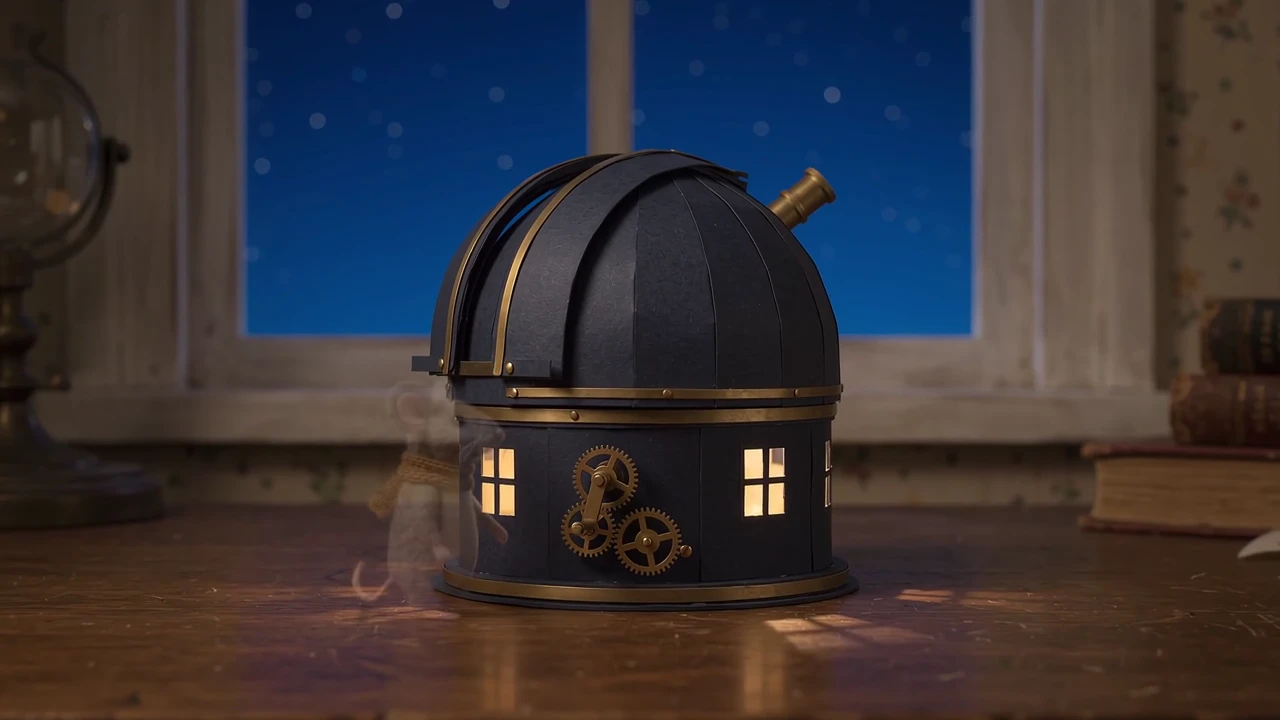
A felt mouse turns the brass crank as the observatory opens. Follow the gears and the telescope emerging from the dome.
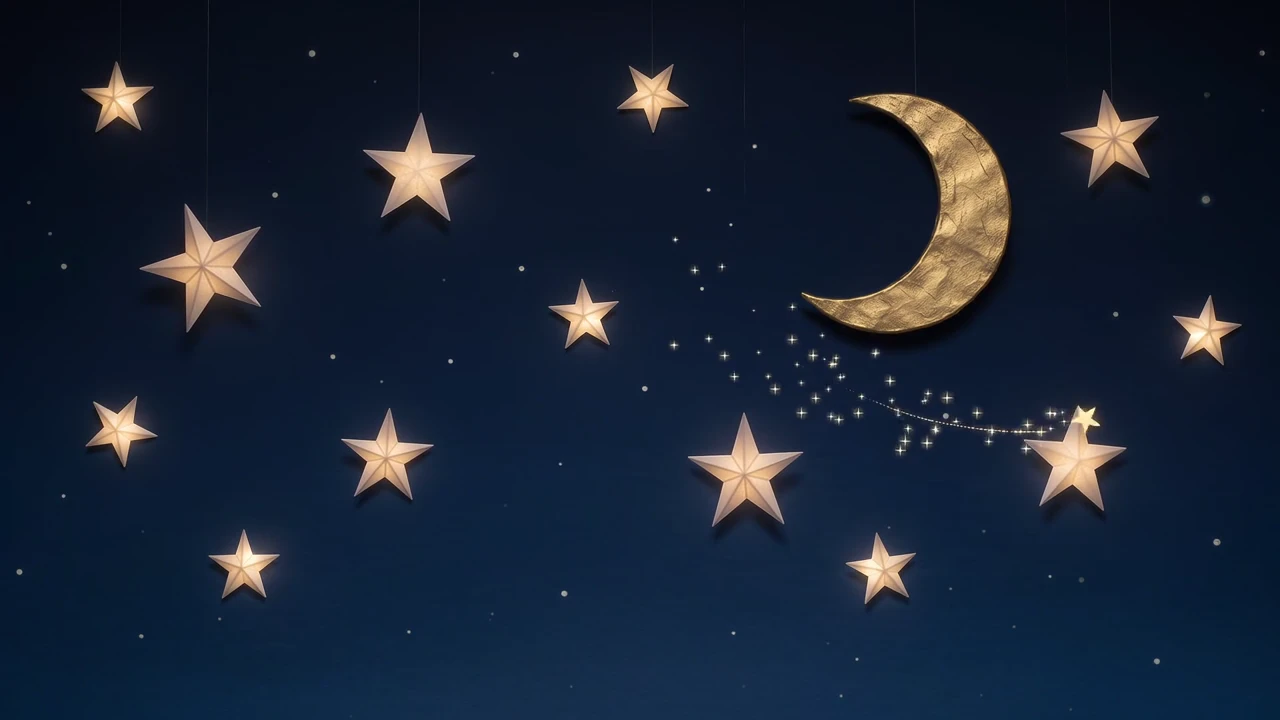
The second shot moves from the brass telescope to a paper moon and a shooting star. The two shots were generated separately.
A felt mouse opens a miniature observatory, and a brass telescope leads into a sky of paper stars. Two original ten-second Gemini shots become one film with native sound.
Shot 1 An original 10-second cinematic stop-motion short with synchronized sound. A tiny observatory made from dark navy paper and warm brass sits on a desk under a deep blue evening sky. A small felt mouse in an ochre scarf turns a brass hand crank; the paper dome opens slowly to reveal a small telescope. Push in from a wide composition to the mouse and turning gears. Tactile handmade materials, warm window light, consistent miniature scale, no text, brands or subtitles. Audio: soft gear clicks, gentle paper creaks, an original delicate celesta melody. End with the open dome and telescope pointing upward, hold the final composition. Shot 2 An original 10-second ending of a cinematic stop-motion miniature observatory film, with synchronized sound. A brass telescope inside a dark navy paper observatory points toward a deep blue night sky. Begin on a close-up of its brass eyepiece, then slowly tilt upward to reveal a handmade golden crescent moon and softly glowing paper stars; one tiny warm shooting star crosses the upper sky, leaving a brief delicate trail. Tactile paper texture, restrained magical atmosphere, elegant navy and gold palette. End with a still wide sky composition for two seconds. Original gentle celesta music resolves on a warm final note, subtle night ambience. No speech, text, logos, subtitles or watermark.
Two original Gemini Omni Flash 1.1 Text generations at 1080p, trimmed to ten seconds each and joined into a 20-second film. Native audio retained and playback loudness normalized; web export at 720p.
Three steps in the studio. Open any screenshot to see the controls at full size.
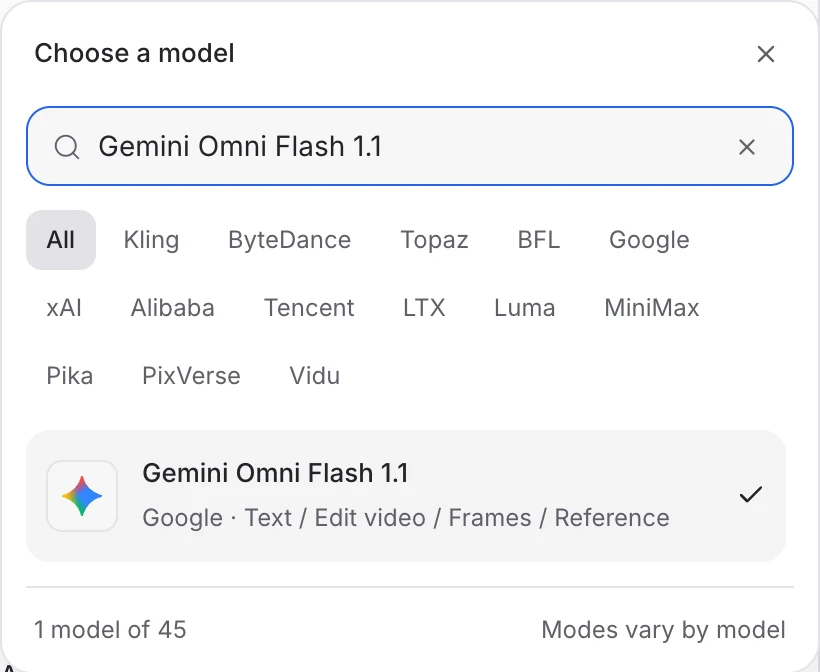
Open Video Studio, search for Gemini Omni Flash 1.1 and select it. Choose the input mode that matches your starting material.
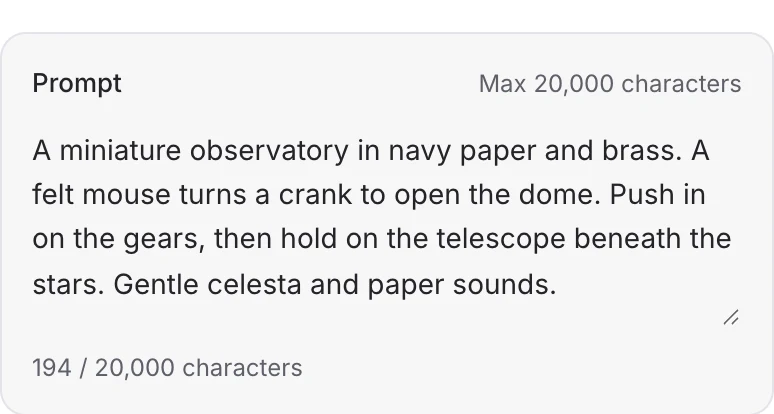
Describe the action, camera movement and ending. Add the images or other references required by your chosen mode.
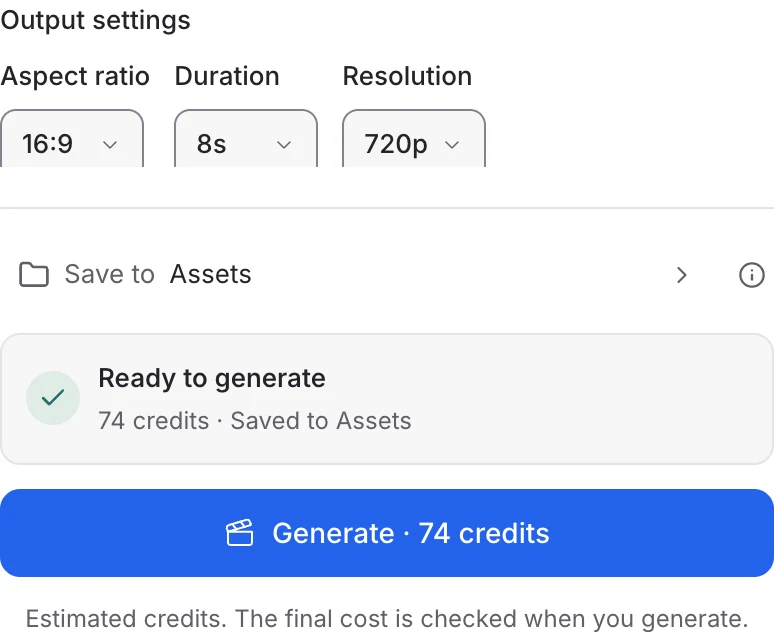
For Text, Frames or Reference, choose 3–10 seconds, the aspect ratio and resolution. Edit video follows the source duration. Review the quote and generate; this model has no separate Audio toggle.
Choose a mode below to see supported media and creative controls, then open that profile in Mozify.
Describe a scene and choose 3–10 seconds, 16:9 or 9:16, and the output resolution. Create separate shots when your story needs a longer edit.
Open this mode in Mozify ↗Use this suggested exercise to start your own generation. The gallery above shows separately recorded outputs.
A suggested exercise to run in your workspace.
Text, Frames and Reference generate 3–10 seconds per clip. Plan an opening, action and ending across separate shots when your story needs more time.
Frames uses a starting image and an optional ending image. Reference accepts up to ten images and three short videos; each reference video must be no longer than three seconds.
Edit video takes a source clip and a written change. Select the output resolution; this mode uses the source duration rather than a new clip-length setting.
Explore models from the Mozify studios.
Generate, stylize, extend and edit video in 15 modes.
Make videos up to 30 seconds with generated audio.
Guide video with image, video and audio references.
Generate clips, edit footage and reuse references.
Create shots, connect frames and extend videos.
Create video from text, frames or media references.
Build short scenes from text and references.
Create video from prompts, frames or media references.
Create clips, edit footage and change framing.
Start a video from text, an image or audio.
Open a guide to explore the inputs and a practical brief. Current availability and credit quotes are shown in your workspace.
Open the Video studio and check the model picker for Gemini Omni Flash 1.1. Select an enabled profile, add its required inputs and review the quote before running.
Bring your product, your brief or your next big idea. Start creating in Mozify.
Explore free, no card required. A paid plan is required to generate and export.


