 IMAGE MODEL / OPENAI
Compose before adding copy
Position the product and reserve negative space in the prompt. Add the final headline in your design or edit after selecting the image.
A brushed-steel espresso maker moves from a cobalt studio set to an oak breakfast table. Compare the housing, blue control and white cup across the original and the reference edit.
Explore free, no card required. A paid plan is required to generate and export.
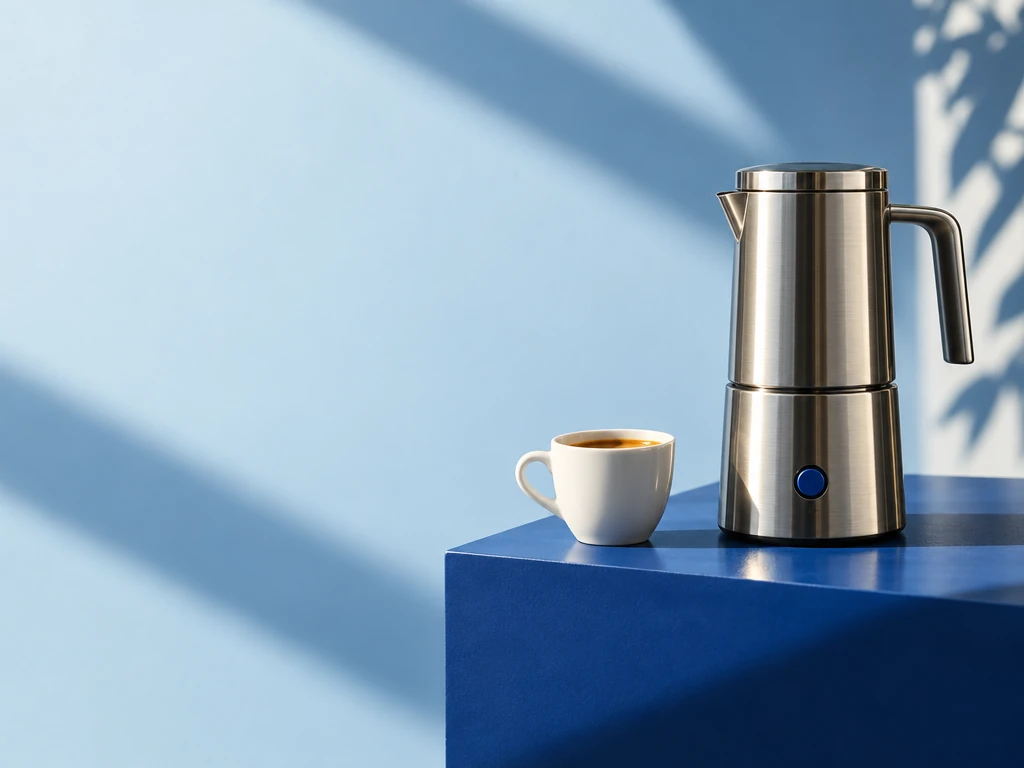
A brushed-steel espresso maker moves from a cobalt studio set to an oak breakfast table. Compare the housing, blue control and white cup across the original and the reference edit.
The first generation puts the espresso maker on a cobalt plinth, with open space on the left for campaign copy.
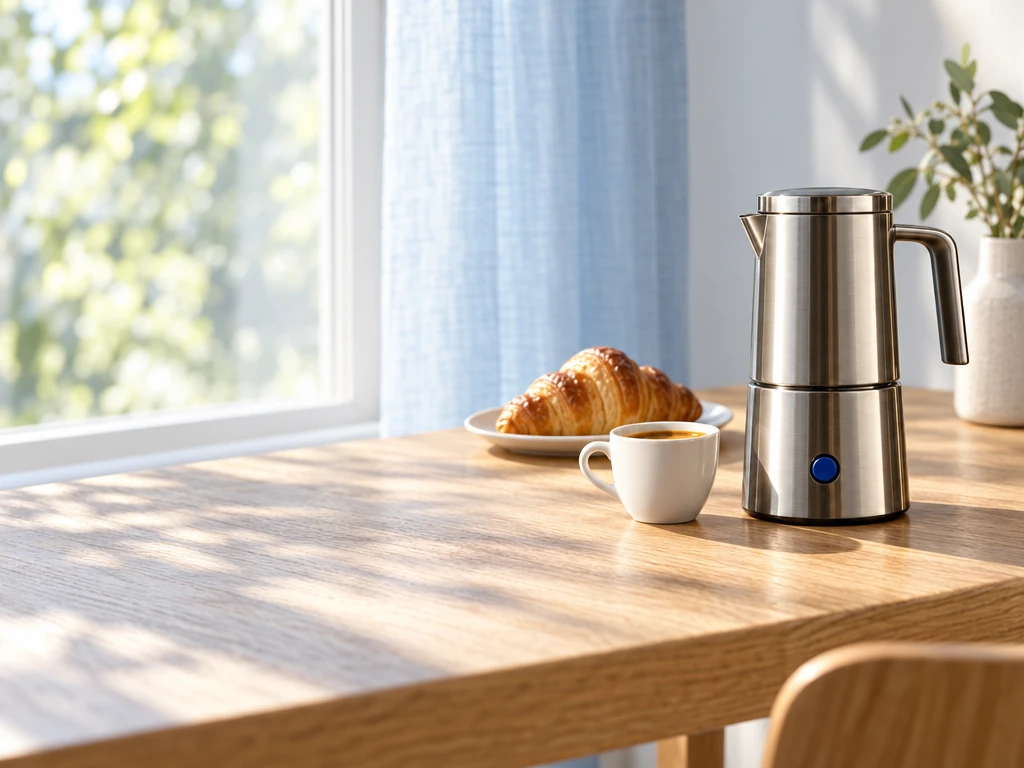
The edit places the supplied product beside a croissant in window light. Compare the blue control, metal body and cup with the source.
A brushed-steel espresso maker moves from a cobalt studio set to an oak breakfast table. Compare the housing, blue control and white cup across the original and the reference edit.
Text brief Premium campaign photograph of a fictional portable espresso maker, brushed stainless steel and a single cobalt blue button, placed on the right third on a cobalt plinth. Small white espresso cup beside it, golden morning sunlight with crisp diagonal shadows. Pale blue studio backdrop, clean negative space on left half for a headline. Believable spout, handle and metal reflections. Elegant photographic product advertising, no text, no logos, no watermark. Reference edit brief Keep the exact brushed-steel espresso maker, handle, spout and cobalt button from the reference. Keep the white espresso cup. Move them to the right third of a natural oak breakfast table beside a large window. Soft daylight, pale blue linen curtain, one croissant on a plate farther back. Premium believable photography. Preserve generous clear space on the left. No text, no logo, no added machines.
Created with GPT Image 2.5 Sunburst through Mozify. The first image was generated from text, then supplied to the Edit / Reference request shown here. Selected originals are resized and encoded for the web.
Three steps in the studio. Open any screenshot to see the controls at full size.
Open Image Studio, search for GPT Image 2.5 Sunburst and select it. Choose the input mode that matches your starting material.
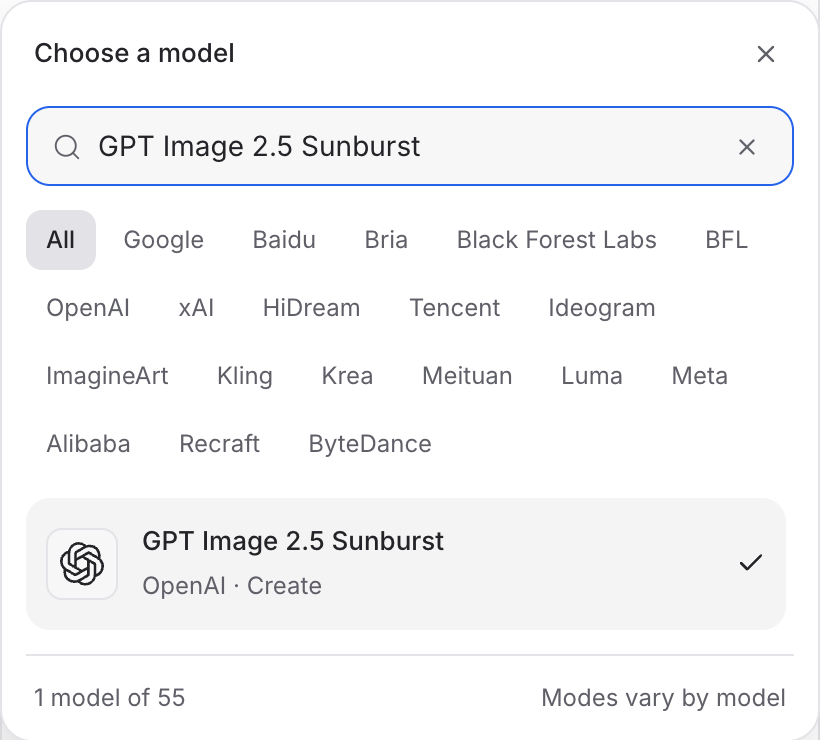
Describe the subject, composition and lighting. To revise an existing image, choose a supported reference mode and add the source image.
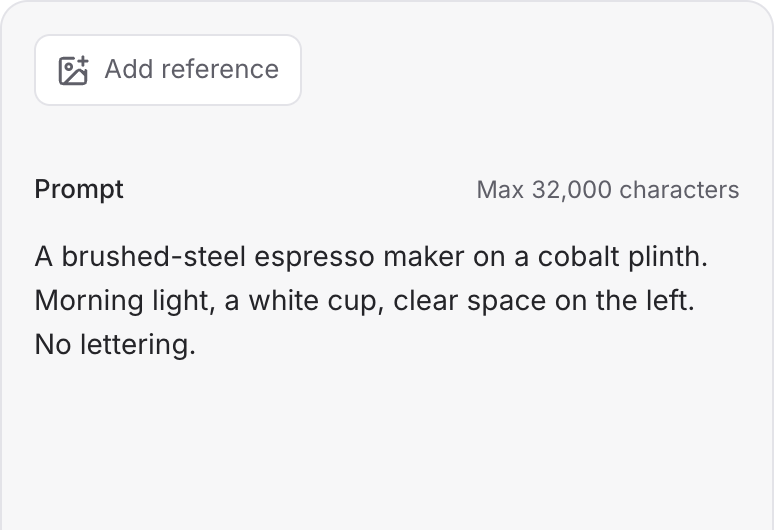
Set the available image size and output options, then review the credit quote. Click Generate and inspect your result at full size.
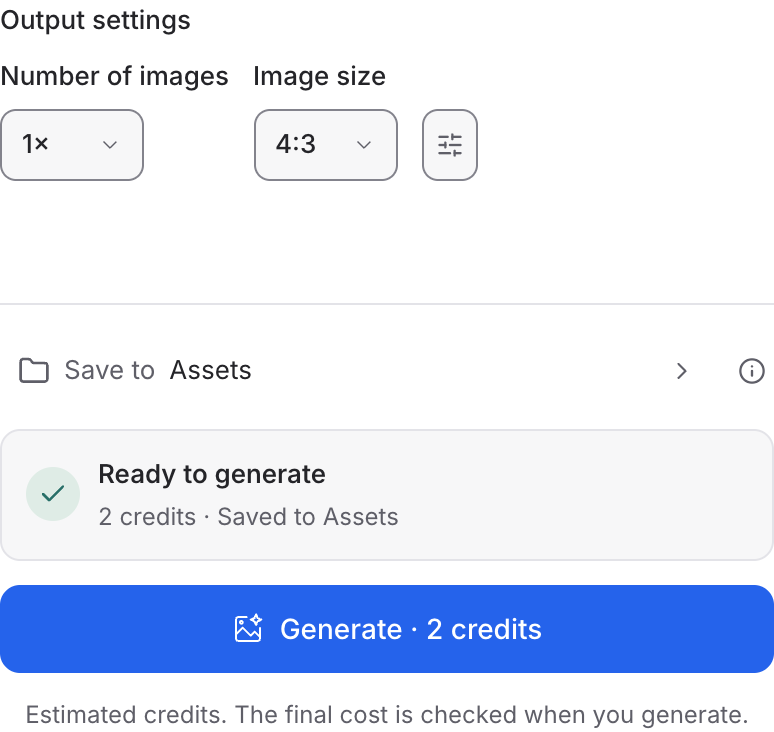
Choose a mode below to see supported media and creative controls, then open that profile in Mozify.
Describe a new scene. Set out the subject, composition and the details that should appear in the result.
Open this mode in Mozify ↗Use this suggested exercise to start your own generation. The gallery above shows separately recorded outputs.
A suggested exercise to run in your workspace.
Position the product and reserve negative space in the prompt. Add the final headline in your design or edit after selecting the image.
Switch to Edit / Reference with the chosen image. Describe a specific change, such as the backdrop, while naming the product details to retain.
Check image size, quality, background and output format in the selected profile before requesting a quote.
Featured in the Mozify studios.
Restyle product photos with image references.
Explore new compositions and reference edits.
Build product scenes with text and image inputs.
Create and revise visuals from product references.
Generate images, edits and repeating patterns.
Create new scenes or edit an existing image.
Generate images with a palette and design brief.
Turn text and references into campaign stills.
Open a guide to explore the inputs and a practical brief. Current availability and credit quotes are shown in your workspace.
Open the Image studio and check the model picker for GPT Image 2.5 Sunburst. Select an enabled profile, add its required inputs and review the quote before running.
Bring your product, your brief or your next big idea. Start creating in Mozify.
Explore free, no card required. A paid plan is required to generate and export.


