 VIDEO MODEL / KLING
Create from words or frames
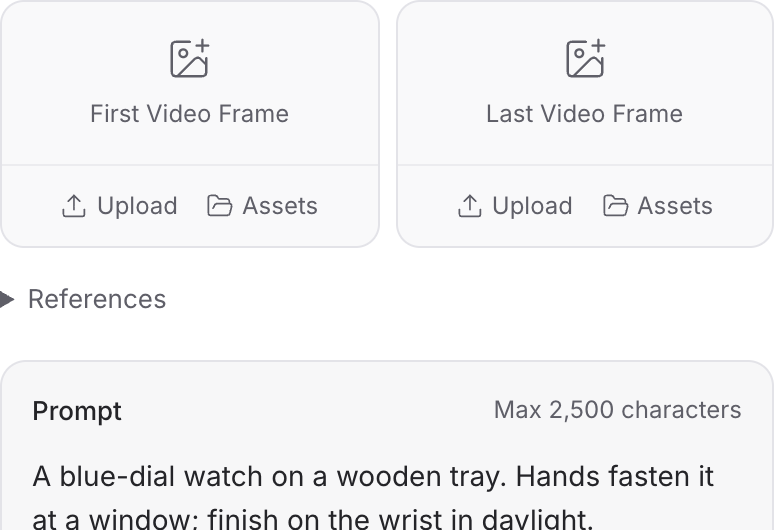
Text begins a new scene. Frames uses an image to establish the shot, with an end-image input available in that profile.
A watch rests on a wooden tray, is fastened at the window, and catches the daylight. This 15-second vertical film closes with the generated line, “Time for what matters.”
Explore free, no card required. A paid plan is required to generate and export.
A watch rests on a wooden tray, is fastened at the window, and catches the daylight. This 15-second vertical film closes with the generated line, “Time for what matters.”
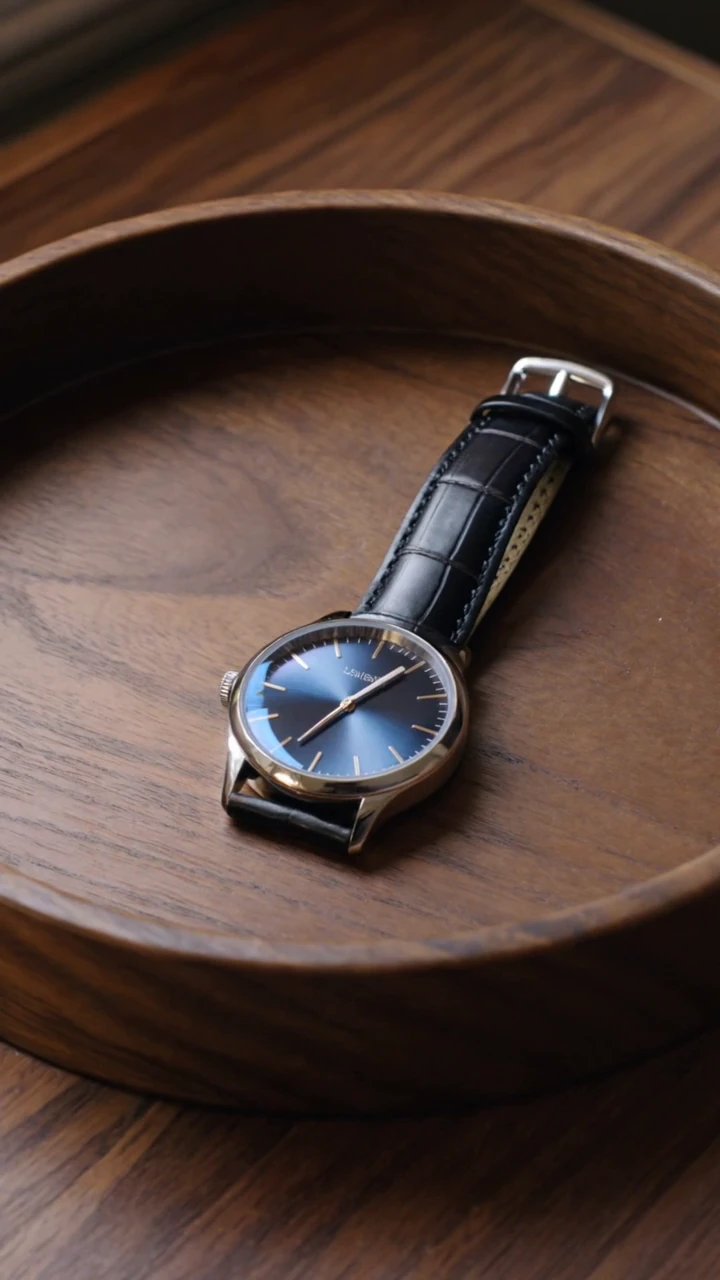
The opening establishes the blue dial, leather strap and wooden tray before the hands enter.
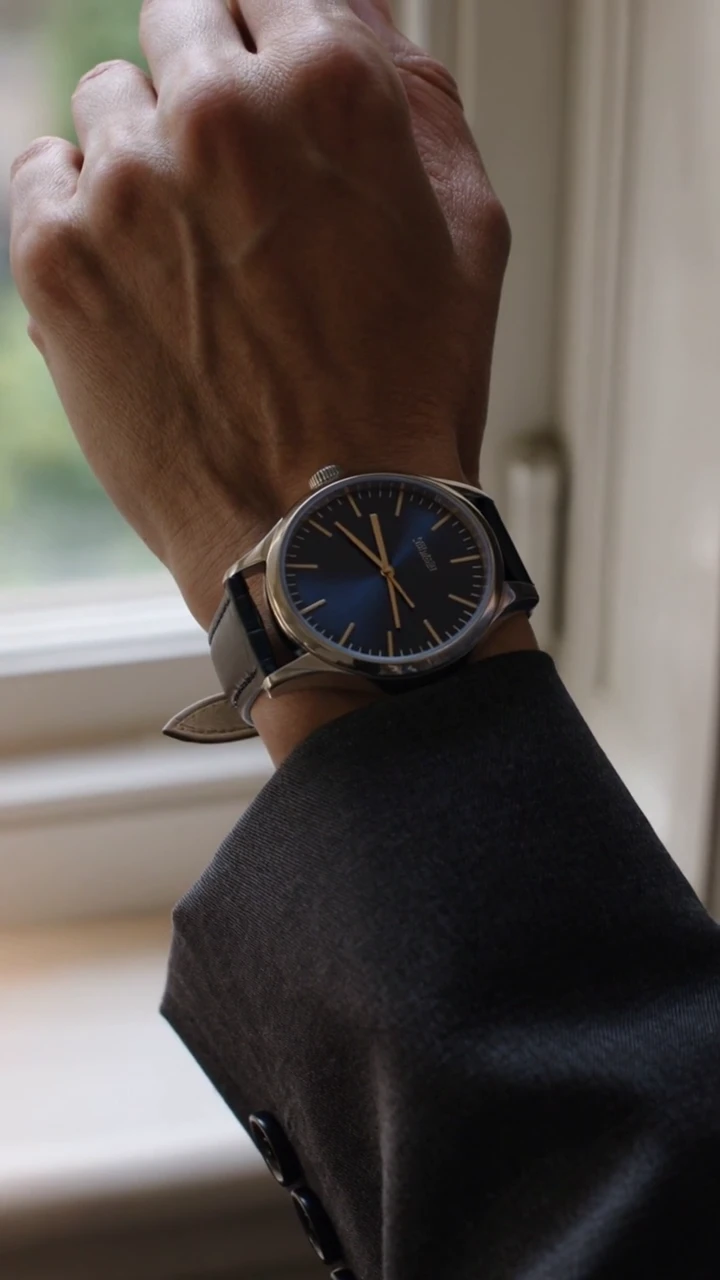
The final product moment holds the watch in window light after it has been fastened.
A watch rests on a wooden tray, is fastened at the window, and catches the daylight. This 15-second vertical film closes with the generated line, “Time for what matters.”
Shot 1 A complete 15-second premium watch commercial with native synchronized audio. 0-4s: macro of an unbranded brushed-steel watch with a deep navy face on a dark walnut tray, warm side light. 4-10s: adult woman in charcoal tailoring gently picks it up and fastens its leather strap around her wrist, believable hands and contact. 10-15s: she checks the time beside a window; finish on a composed close-up of the watch with a held final frame. Same watch throughout, elegant restrained cuts, physical motion, no rapid montage. Sound: delicate clasp click, cloth rustle, quiet original jazz piano motif; calm female voice says "Time for what matters." No logos, on-screen text, watermark or famous music.
One original 15-second Kling O3 Pro generation. Native audio retained; web export resized and loudness normalized.
Three steps in the studio. Open any screenshot to see the controls at full size.
Open Video Studio, search for Kling O3 Pro and select it. Choose the input mode that matches your starting material.
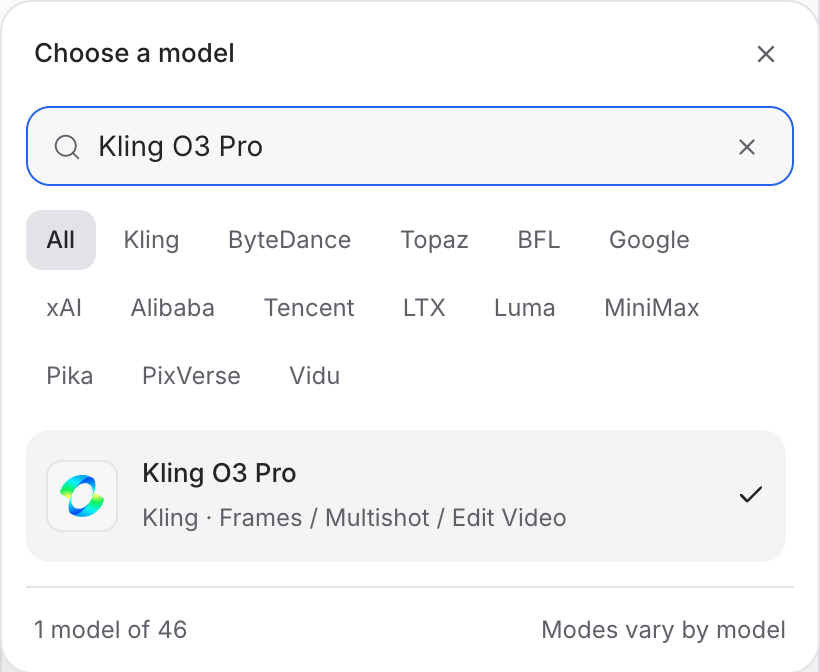
Describe the action, camera movement and ending. Add the images or other references required by your chosen mode.
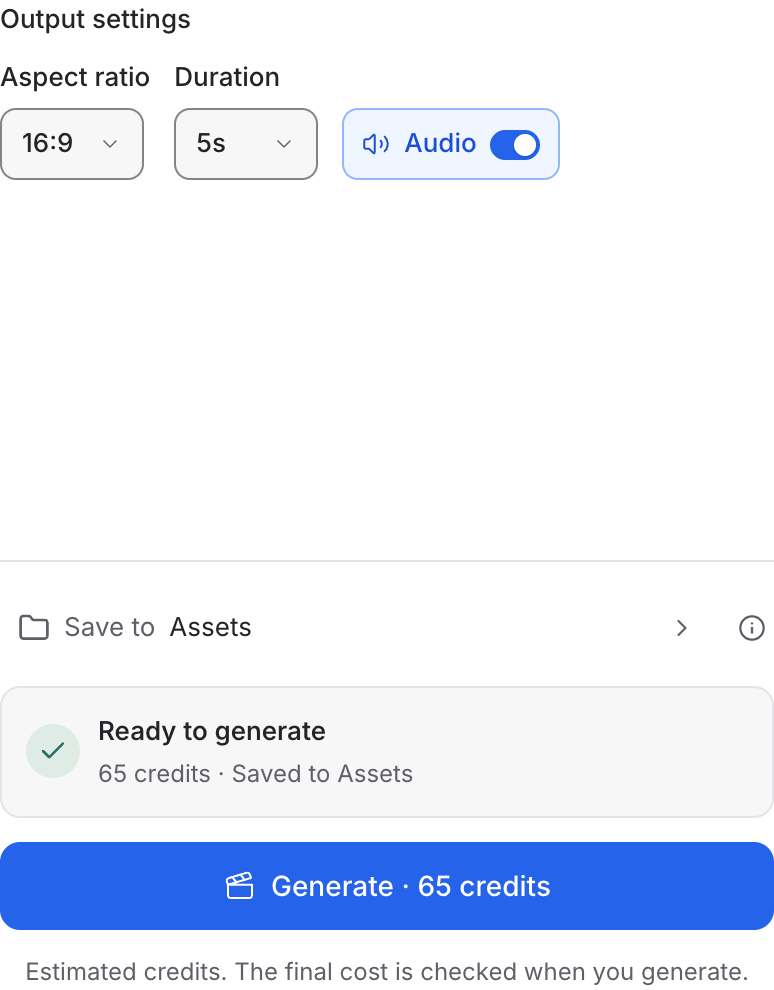
Set the available format and duration controls. Enable Audio when offered, review the credit quote and click Generate. Play the result with sound.
Choose a mode below to see supported media and creative controls, then open that profile in Mozify.
Begin with source footage and a focused change. Review the complete result against the original clip.
Open this mode in Mozify ↗Use this suggested exercise to start your own generation. The gallery above shows separately recorded outputs.
A suggested exercise to run in your workspace.
Text begins a new scene. Frames uses an image to establish the shot, with an end-image input available in that profile.
Reference and Reference video are separate profiles. Check their supported image and video inputs before preparing a request.
Edit video accepts source footage and includes Keep source audio. Describe exactly which part of the scene should change.
Featured in the Mozify studios.
Guide video with image, video and audio references.
Create shots, connect frames and extend videos.
Create video from text, frames or media references.
Build short scenes from text and references.
Create video from prompts, frames or media references.
Create clips, edit footage and change framing.
Start a video from text, an image or audio.
Open a guide to explore the inputs and a practical brief. Current availability and credit quotes are shown in your workspace.
Open the Video studio and check the model picker for Kling O3 Pro. Select an enabled profile, add its required inputs and review the quote before running.
Bring your product, your brief or your next big idea. Start creating in Mozify.
Explore free, no card required. A paid plan is required to generate and export.


