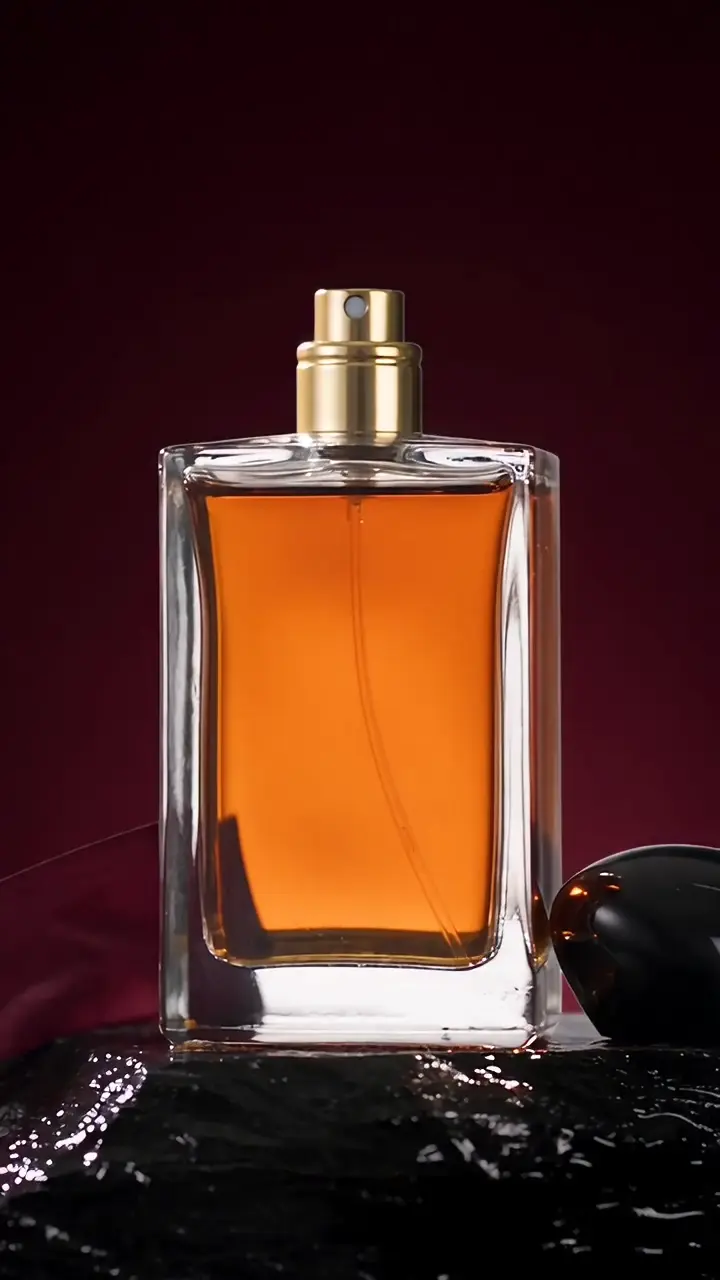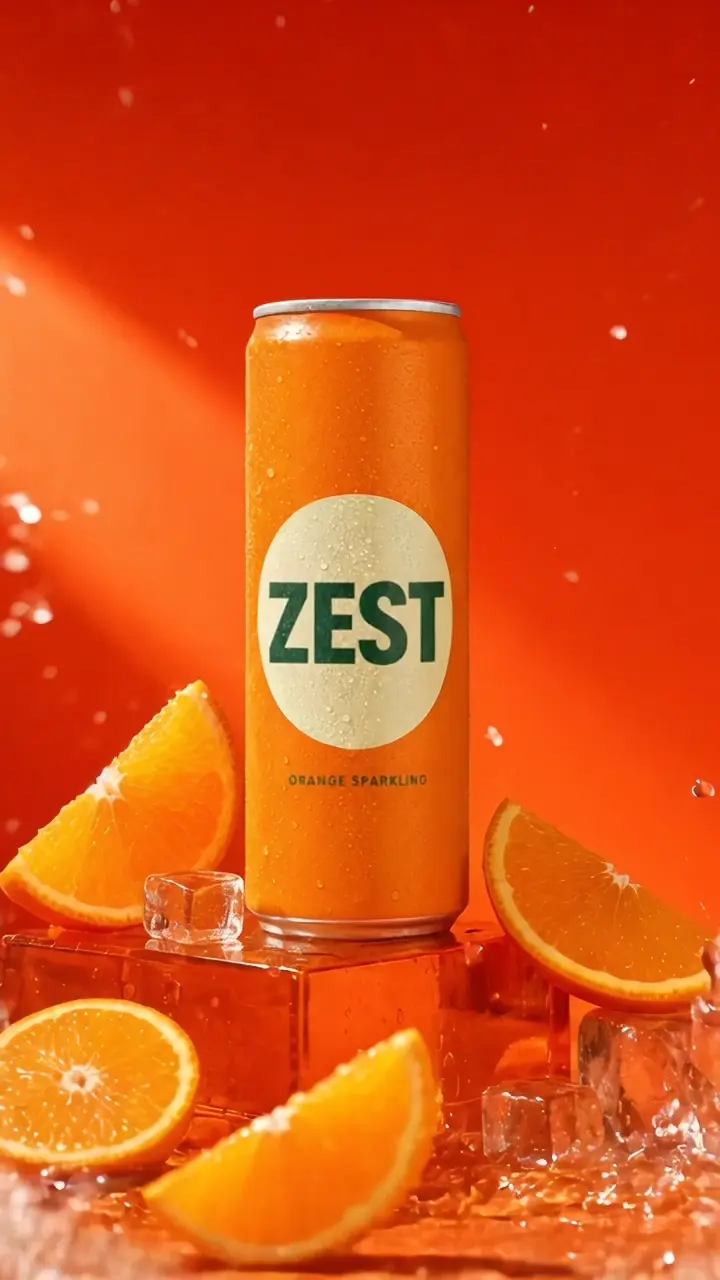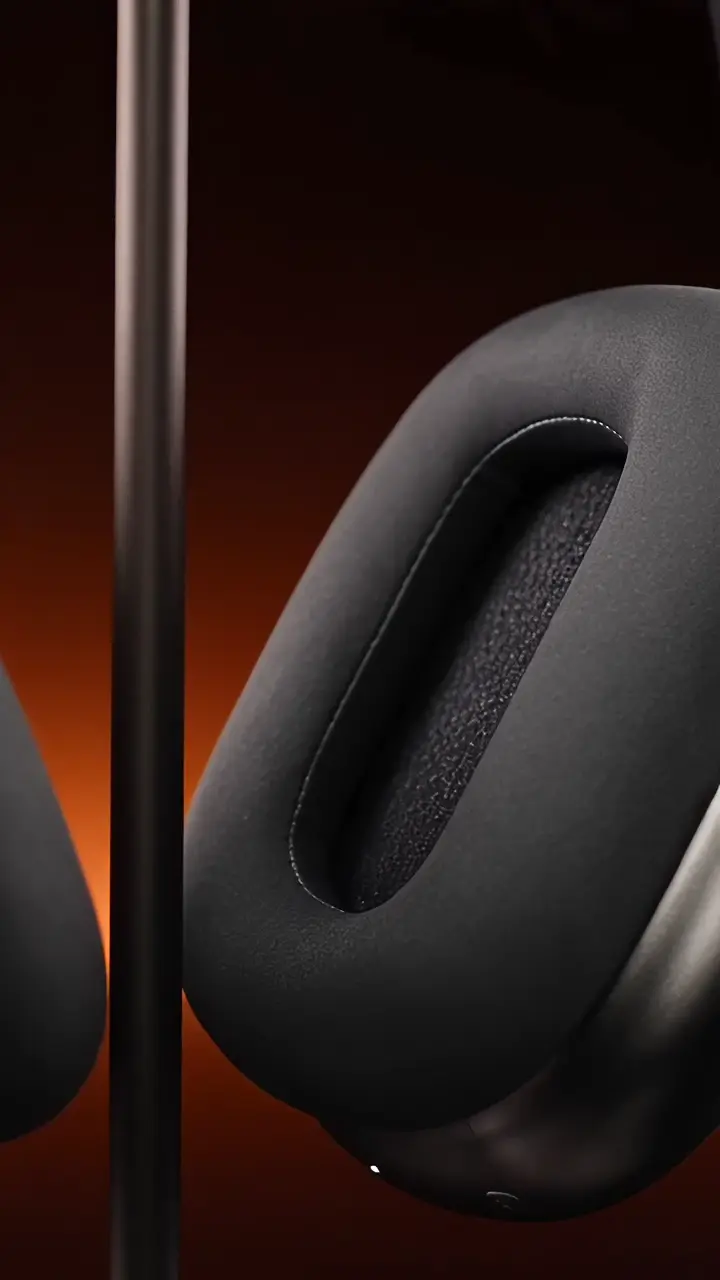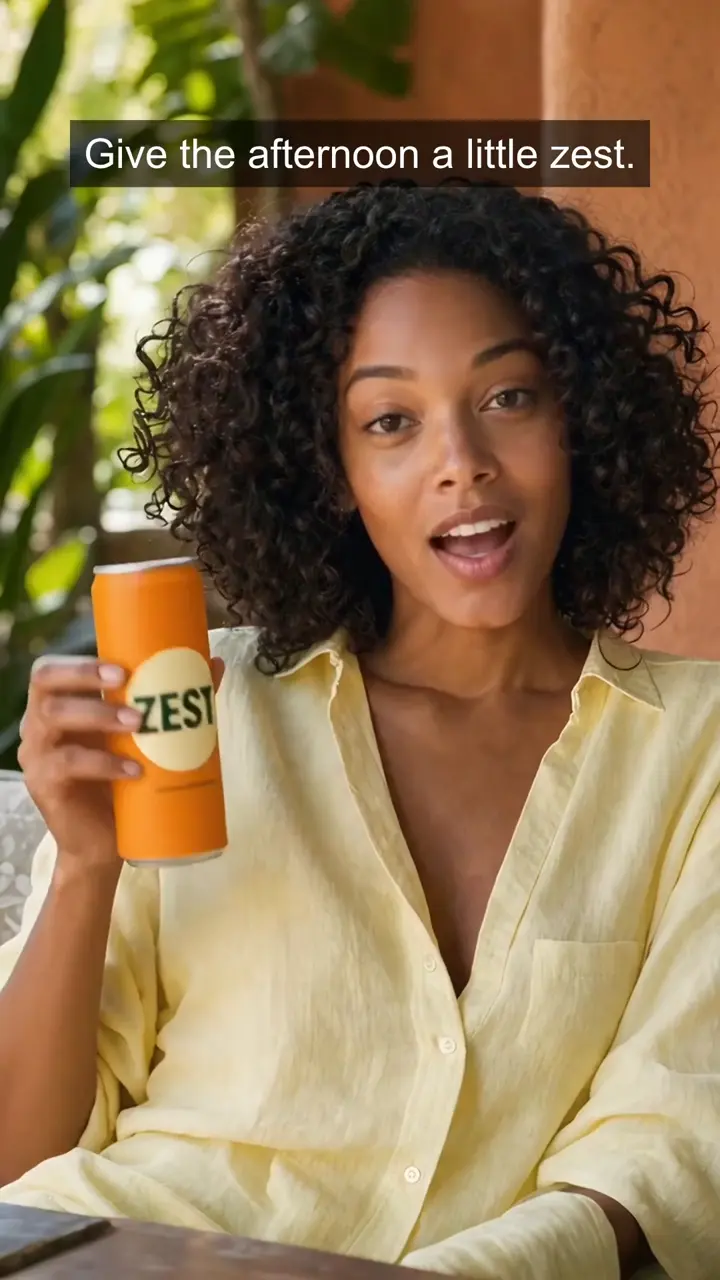
One product. More possibilities.
Move from a clean catalog image to a studio scene, a seasonal setting or a lifestyle concept. Explore the direction without rebuilding the brief.
MOZIFY / AI IMAGES
Turn a product reference into a visual world: a new setting, a different mood, a campaign that looks like your brand. Create images from a prompt or build on a photo you already have.
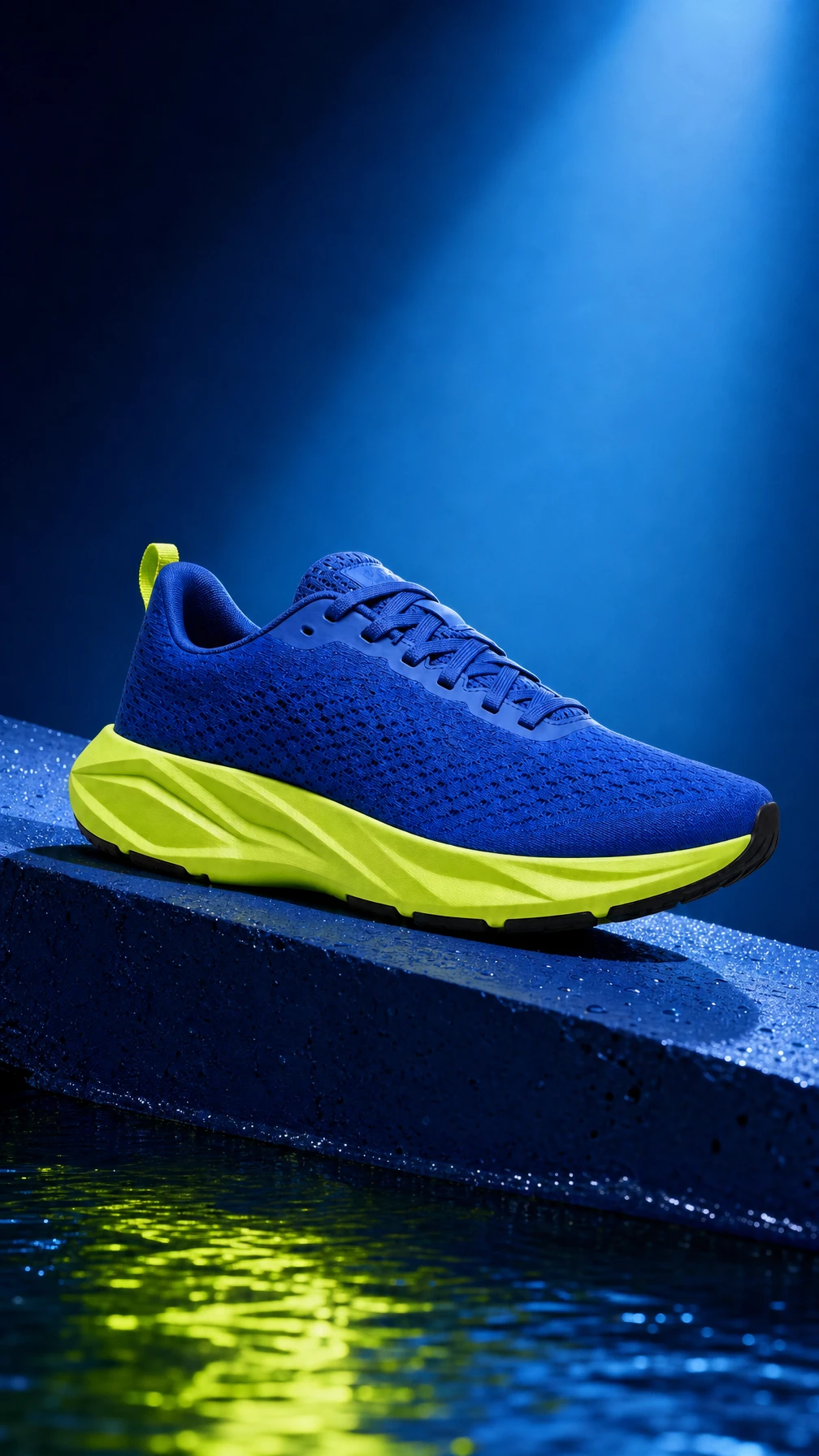 The campaign image
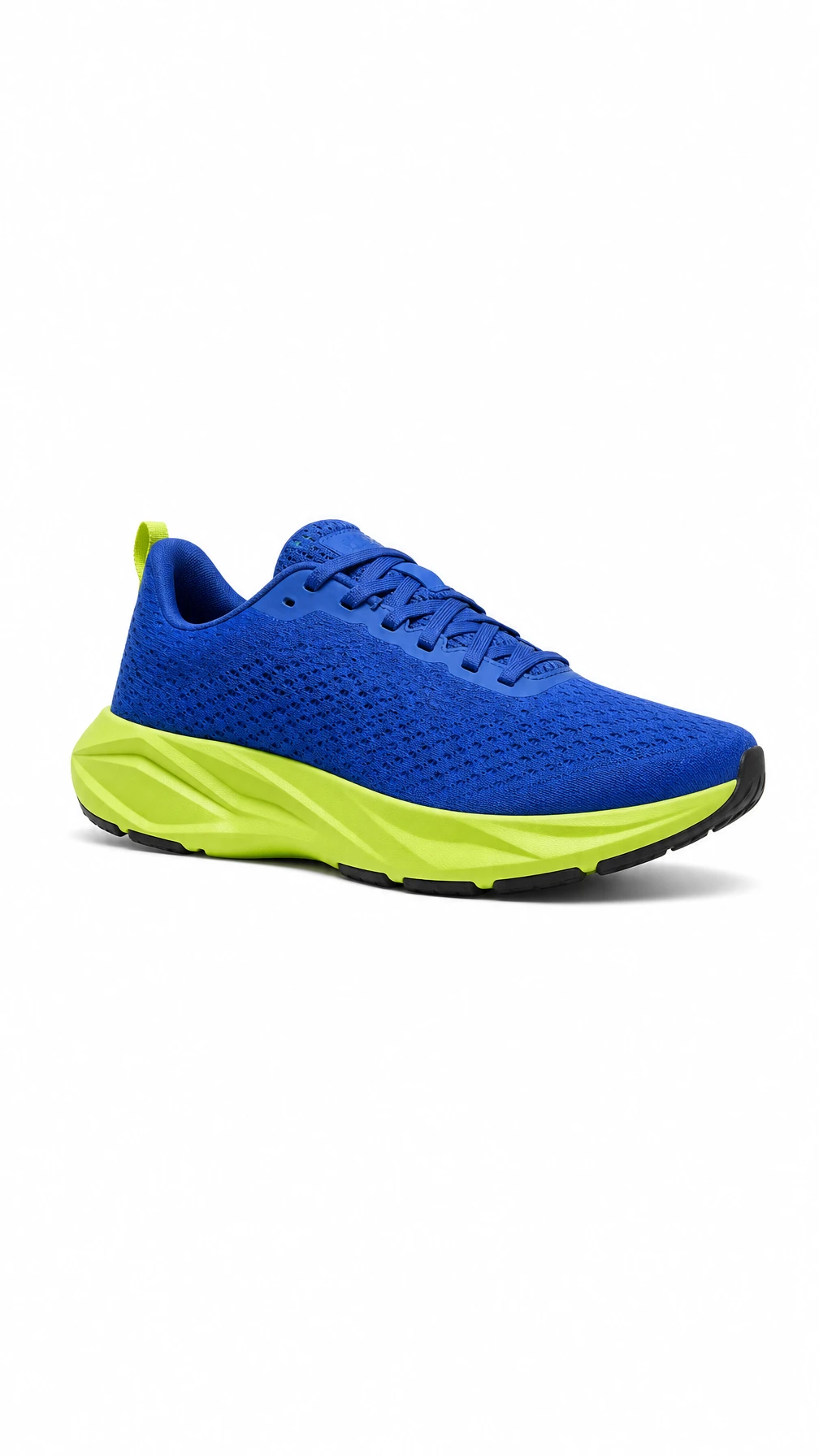 The starting reference ↗
Move from a clean catalog image to a studio scene, a seasonal setting or a lifestyle concept. Explore the direction without rebuilding the brief.
Describe lighting, materials, framing and what should stay the same. Choose image controls and output settings for your selected model.
Save the image in Assets, animate it with a supported video model or use it in an Editor project. The next step starts with the same asset.
MADE IN MOZIFY
Cobalt light. Sculpted texture. A product in its element.
Fictional sample products. References and campaign images created with GPT Image 2. Video examples use their shown scene as the starting frame.
FROM THE FIRST STEP
Upload a clear product image, select an existing asset or begin with a text prompt.
Set the scene, lighting and composition. Choose your model, references and output size, then review the quote.
Inspect the result at full size. Save or download it, then continue into video generation or the Editor.
BUILT AROUND YOUR WORK
Create a distinct visual direction for a new release.
Bring the same product into a fresh setting or color palette.
Build a collection of stills for social, email and landing pages.
Yes. Upload a supported image or choose one from Assets, select a model with reference or editing support, and describe the changes. A clear, well-lit reference helps you communicate the details that matter.
Your product, your message, your next ad. Start with an image and build the story in Mozify.