 VIDEO MODEL / FAL
Frames
Give a product photo a next moment.
Choose Frames and add your starting image. Describe the movement and, if you have a final composition in mind, supply an ending image too.
Start with FramesAn orange lamp turns a quiet corner into a place to unwind. Watch the original 15-second FLUX 3 Max film, then create your own product reveal from text, a starting image or timed keyframes in Mozify.
Explore free, no card required. A paid plan is required to generate and export.
An orange desk lamp turns a cool afternoon corner into a warm place to read. Follow the close-up, the switch and the final wide composition in one original 15-second Text generation.
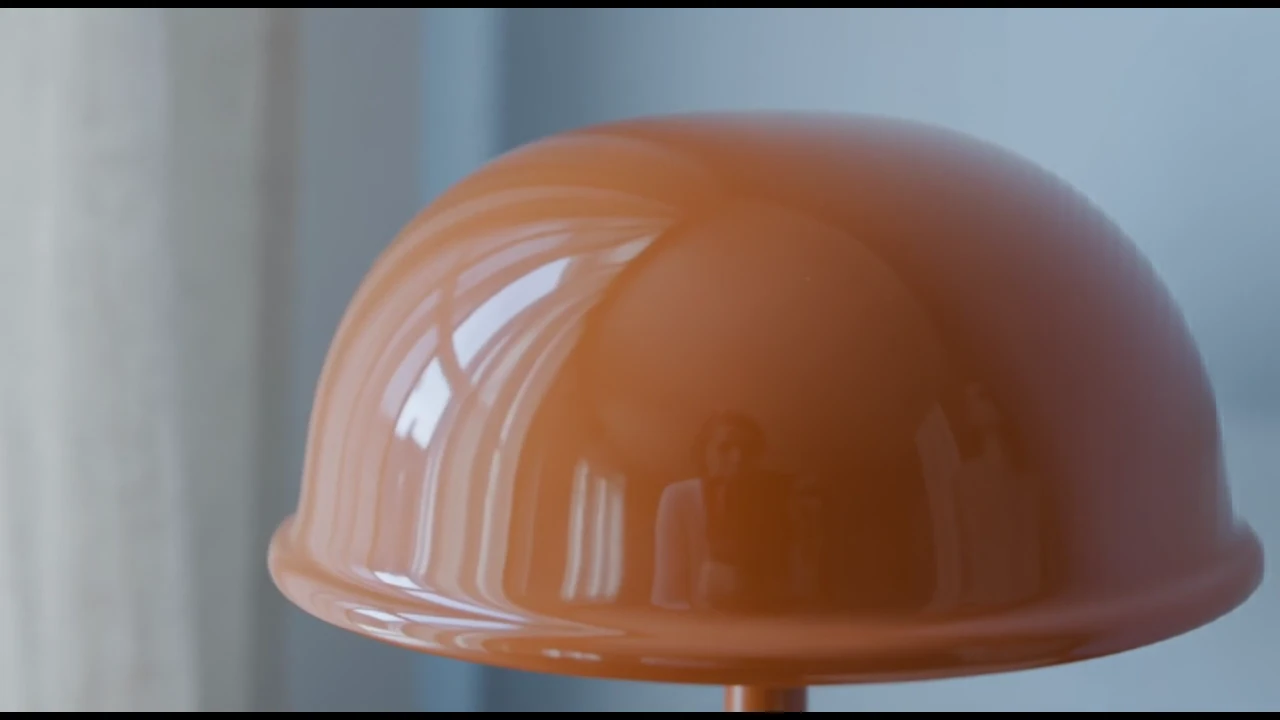
The opening moves close to the orange enamel shade, catching the window reflection before revealing the whole lamp.
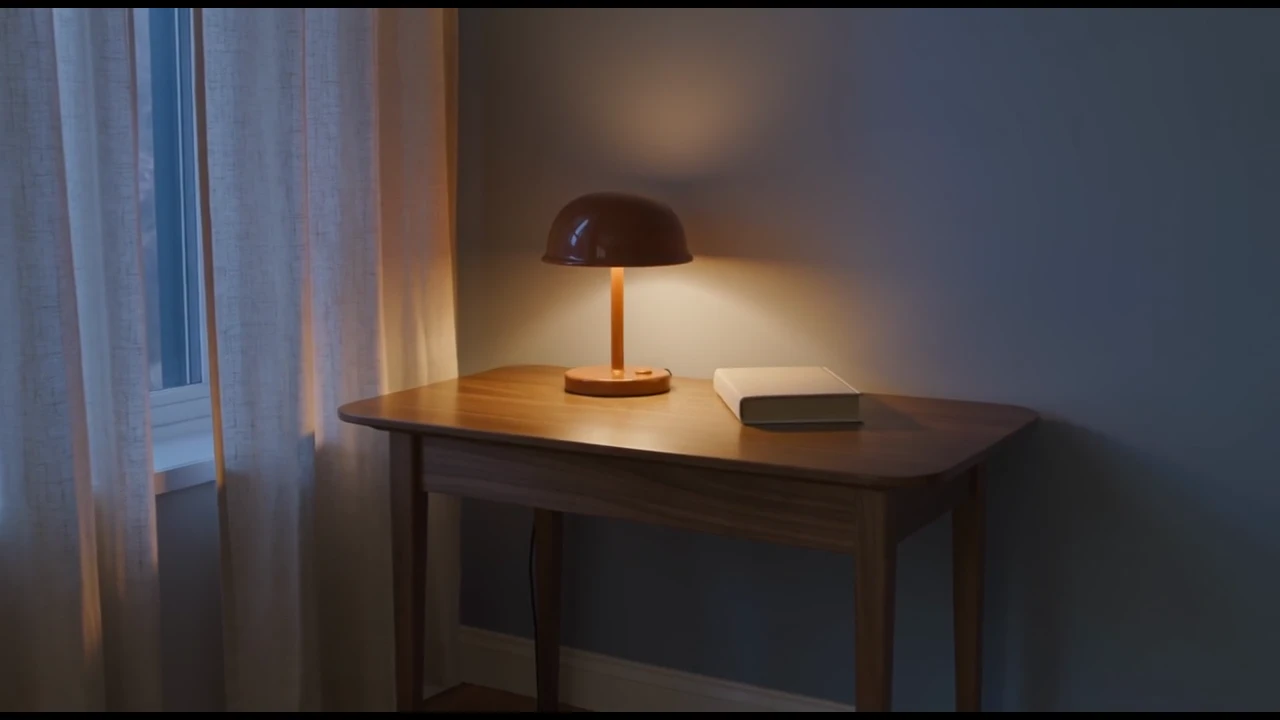
After a hand presses the switch, the camera pulls back to a warm reading corner. The final composition leaves time for the scene to settle.
An orange desk lamp turns a cool afternoon corner into a warm place to read. Follow the close-up, the switch and the final wide composition in one original 15-second Text generation.
Create a complete 15-second premium interior product film for a fictional burnt-orange enamel desk lamp with a smooth mushroom shade, straight cylindrical stem and circular base. A quiet reading corner: walnut desk, pale blue wall, one closed cream book and a linen curtain. 0–5 seconds: begin close on the curved orange shade catching cool late-afternoon window reflections; camera slowly slides to reveal the whole lamp. 5–10 seconds: an adult hand enters once and presses a small switch on the base, then exits; the lamp turns on with a warm pool of light across the book and wood. 10–15 seconds: pull back gently to the complete evening reading corner as the linen curtain moves softly; hold the balanced final composition for two seconds. Keep the lamp geometry and orange color consistent, believable physical light, restrained camera movement, elegant advertising photography. Native sound: a gentle switch click, quiet room ambience, a soft original three-note piano phrase resolving at the end. No speech, text, lettering, logos, watermark or subtitles.
One original 15-second FLUX 3 Max Text generation with High reasoning and Generated audio enabled. Native audio retained and playback loudness normalized; web export at 720p.
A close-up, a reveal, a final composition. FLUX 3 Max lets you start from a written idea or use images to guide how your video unfolds.
Choose Frames and add your starting image. Describe the movement and, if you have a final composition in mind, supply an ending image too.
Start with FramesUse Keyframes to place up to ten images at specific moments. Set the positions, then describe the camera and action that connect them.
Start with KeyframesDescribe the subject, light and motion in Text mode. Enable Generated audio and include sound direction for a brand scene, product vignette or atmospheric cutaway.
Start with TextThree steps in the studio. Open any screenshot to see the controls at full size.
Open Video Studio and select FLUX 3 Max. Choose Text to begin from a prompt, Frames to animate a starting image, or Keyframes to place images at specific moments.
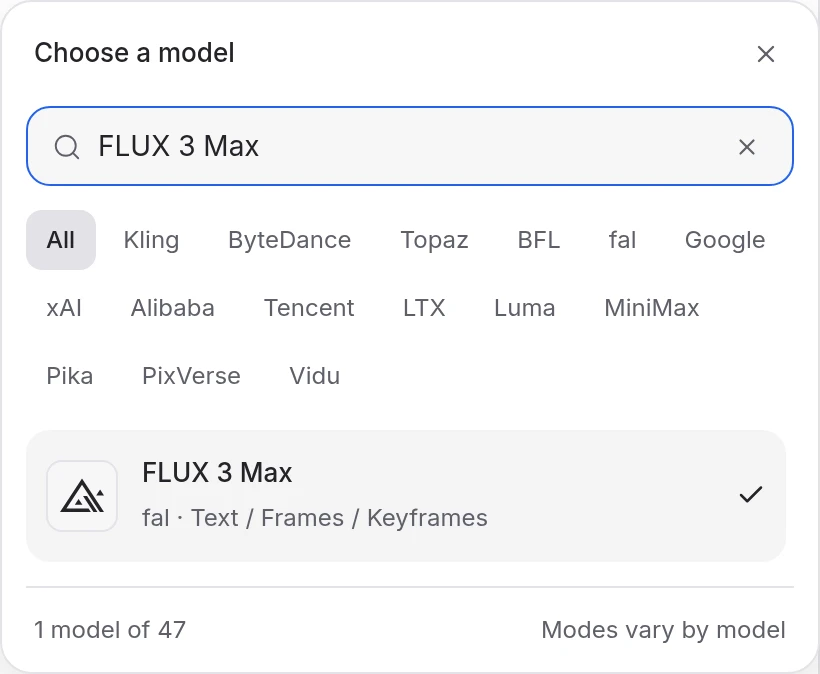
Describe the action and camera movement. Frames accepts an optional ending image. In Keyframes, add 1–10 images with unique positions at 24 frames per second, within your chosen duration.
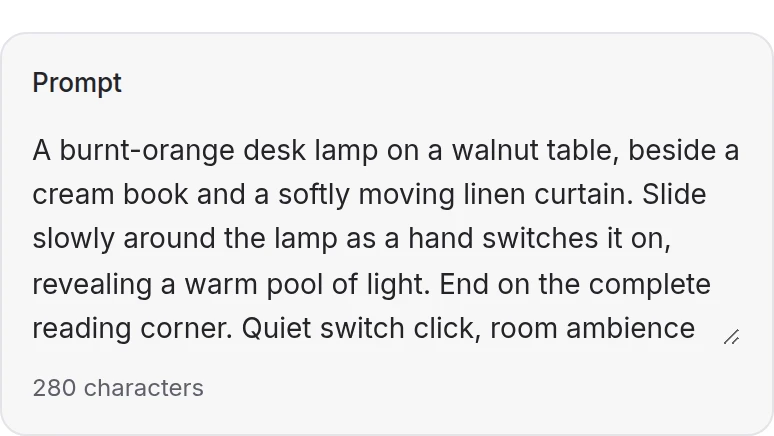
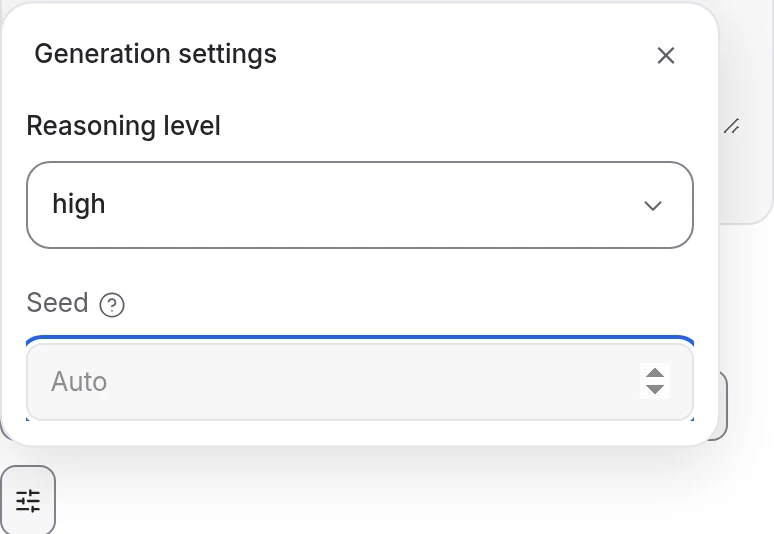
Set 5–20 seconds, 720p or 1080p, the aspect ratio and Low or High reasoning. Choose whether to generate audio, review the quote and generate. Inspect the transitions and final frame.
Choose a mode below to see supported media and creative controls, then open that profile in Mozify.
Add 1–10 images and assign each a unique frame position at 24 frames per second. Positions run from zero to the selected duration multiplied by 24. For ten seconds, use positions from 0 to 240 and describe how the scene moves between them.
Open this mode in Mozify ↗Use this suggested exercise to start your own generation. The gallery above shows separately recorded outputs.
A suggested exercise to run in your workspace.
Text begins with your written scene. Frames uses a starting image and an optional ending image. Keyframes lets you supply 1–10 images with individual frame positions.
Keyframe timing uses 24 frames per second. Each position must be a different whole number from zero to the selected duration multiplied by 24. For a ten-second clip, frame 120 marks five seconds and frame 240 marks the endpoint.
Choose 5–20 seconds, 720p or 1080p, and Low or High reasoning. Auto aspect ratio uses 16:9 for Text and follows the first image for image inputs. Use Generated audio to include sound, then review the credit quote.
Explore models from the Mozify studios.
Create from text or references, or edit existing video.
Generate, stylize, extend and edit video in 15 modes.
Make videos up to 30 seconds with generated audio.
Guide video with image, video and audio references.
Direct scenes with frames, references and video edits.
Generate clips, edit footage and reuse references.
Create shots, connect frames and extend videos.
Create video from text, frames or media references.
Build short scenes from text and references.
Create video from prompts, frames or media references.
Create clips, edit footage and change framing.
Start a video from text, an image or audio.
Open a guide to explore the inputs and a practical brief. Current availability and credit quotes are shown in your workspace.
Open the Video studio and check the model picker for FLUX 3 Max. Select an enabled profile, add its required inputs and review the quote before running.
Bring your product, your brief or your next big idea. Start creating in Mozify.
Explore free, no card required. A paid plan is required to generate and export.


