
 IMAGE MODEL / XAI
Keep the action simple
One person handling one object gives you a clear interaction to evaluate.
A ceramicist inspecting a blue bowl gives this pair a clear focal point: the face, hands and object. The reference edit brings the scene into a cooler, blue-walled studio.
Explore free, no card required. A paid plan is required to generate and export.
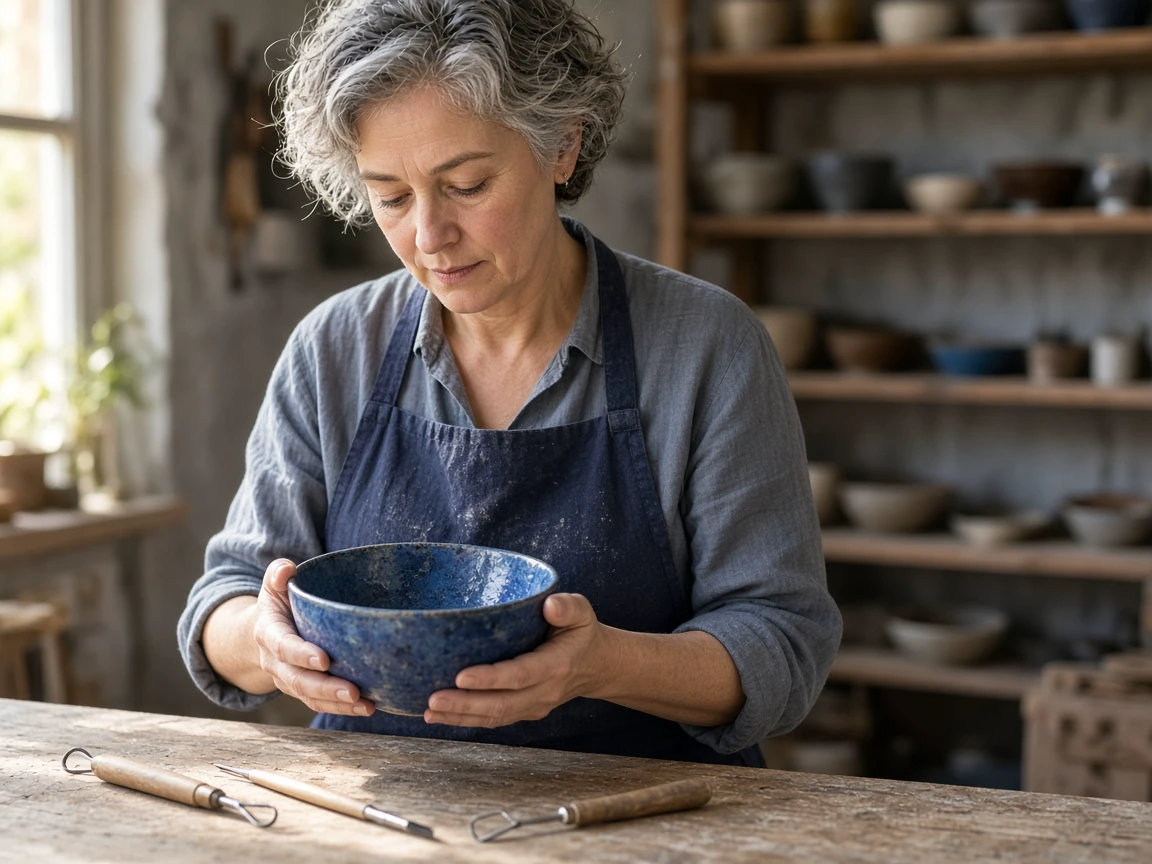
A ceramicist inspecting a blue bowl gives this pair a clear focal point: the face, hands and object. The reference edit brings the scene into a cooler, blue-walled studio.
The first image centers a ceramicist holding a blue handmade bowl above a workbench. Inspect the fingers and their contact with the rim.
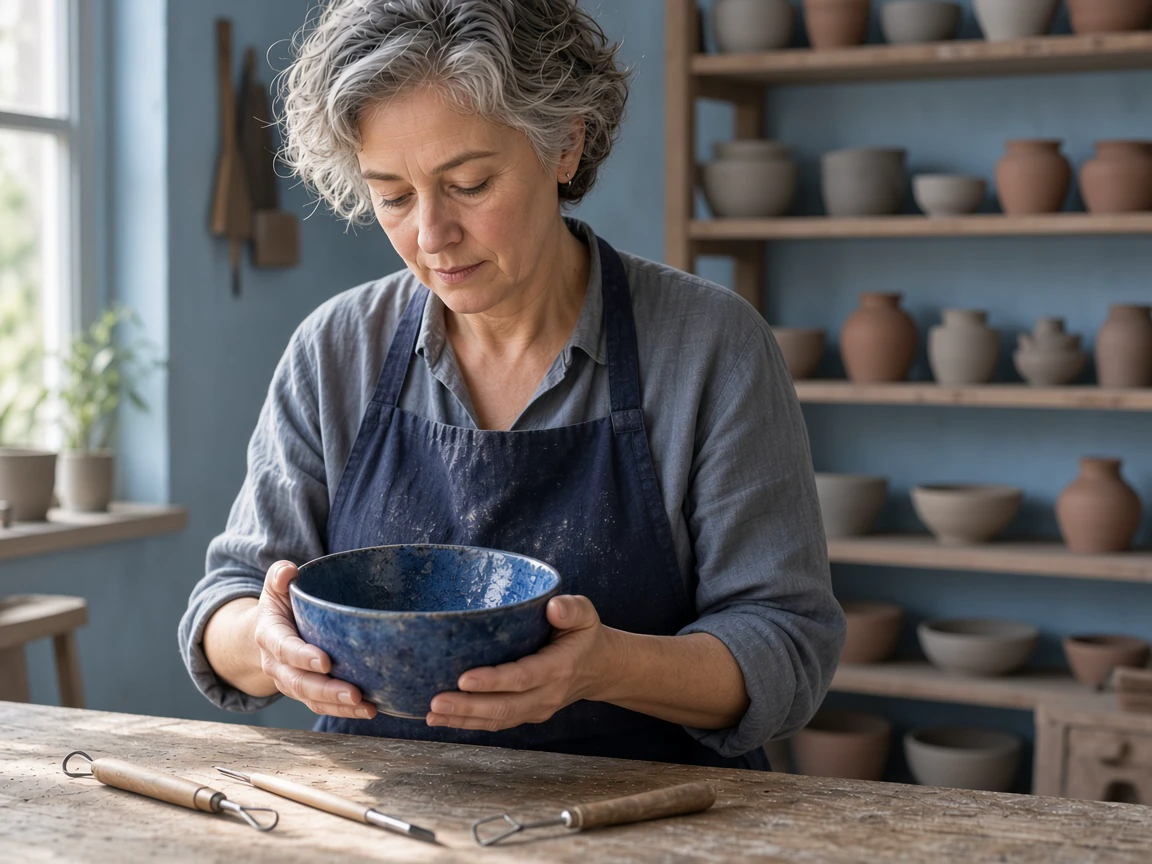
The edit changes the studio walls and daylight while retaining the person, apron and bowl. Compare the face and hand positions with the original.
A ceramicist inspecting a blue bowl gives this pair a clear focal point: the face, hands and object. The reference edit brings the scene into a cooler, blue-walled studio.
Text brief Candid editorial photograph of an adult woman ceramicist, short silver-streaked hair, navy linen apron, standing at a sunlit pottery workbench. She gently inspects a cobalt-blue handmade bowl held naturally in both hands at chest level. Clear visible hands and fingers supporting the bowl, believable contact. Three pottery tools on the wooden table, softly blurred studio shelving. Documentary daylight, calm concentration, natural skin texture. No text, no logos, no watermark. Reference edit brief Keep the same adult ceramicist, her face, navy apron, hands and the cobalt handmade bowl exactly recognizable. Change only the studio environment to a cooler overcast daylight workshop with pale blue walls and a neat shelf of unglazed pottery. Keep believable hand contact with the bowl and the wooden workbench. Editorial documentary photograph, no text or logos.
Created with Grok Imagine Image 2.0 through Mozify. The first image was generated from text, then supplied to the Edit / Reference request shown here. Selected originals are resized and encoded for the web.
Three steps in the studio. Open any screenshot to see the controls at full size.
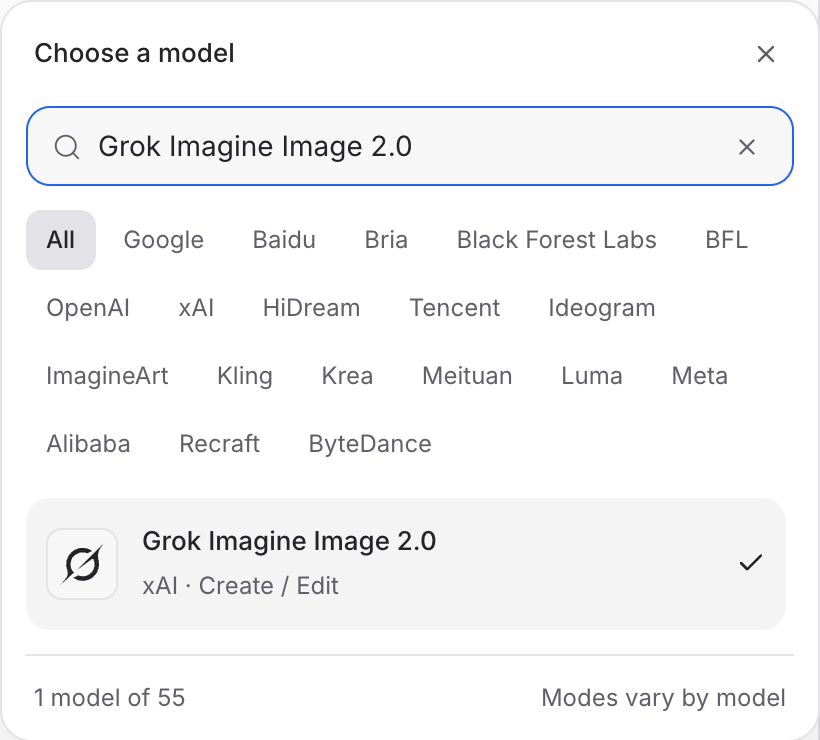
Open Image Studio, search for Grok Imagine Image 2.0 and select it. Choose the input mode that matches your starting material.
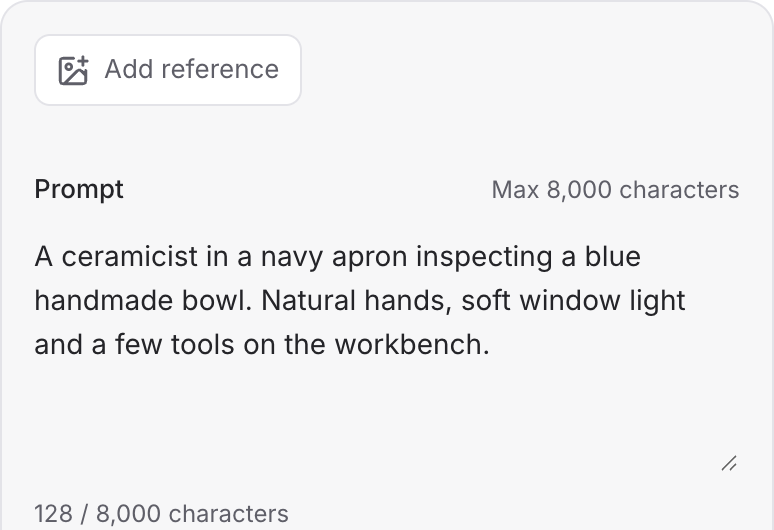
Describe the subject, composition and lighting. To revise an existing image, choose a supported reference mode and add the source image.
Set the available image size and output options, then review the credit quote. Click Generate and inspect your result at full size.
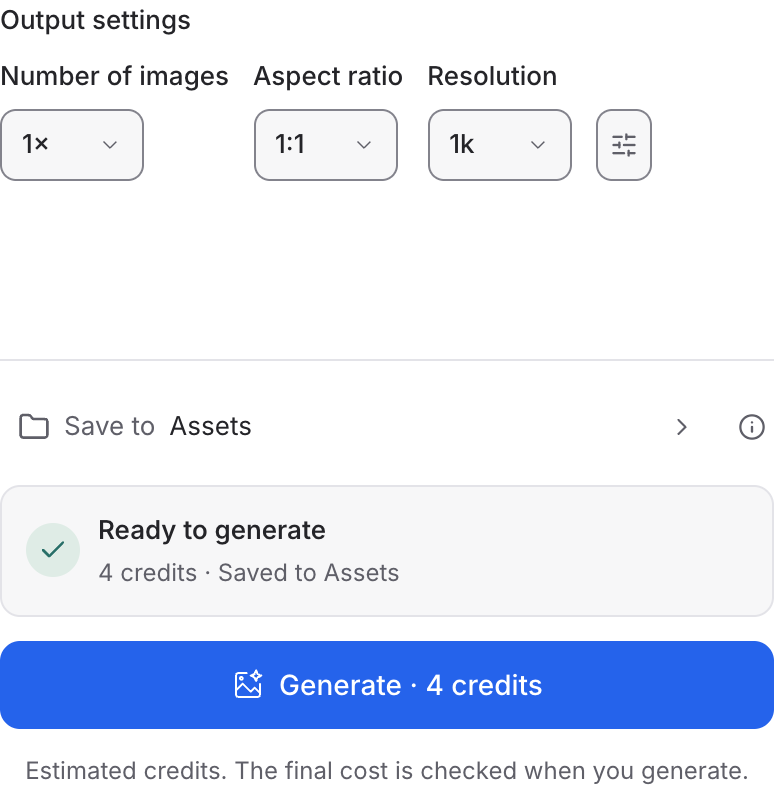
Choose a mode below to see supported media and creative controls, then open that profile in Mozify.
Describe a new scene. Set out the subject, composition and the details that should appear in the result.
Open this mode in Mozify ↗Use this suggested exercise to start your own generation. The gallery above shows separately recorded outputs.
A suggested exercise to run in your workspace.
One person handling one object gives you a clear interaction to evaluate.
Use Edit / Reference on the chosen image to explore a different workshop or light direction. Recheck the hands after every revision.
Set the aspect ratio around the intended placement so the face, hands and product all remain visible.
Featured in the Mozify studios.
Create campaign images from text or references.
Restyle product photos with image references.
Explore new compositions and reference edits.
Build product scenes with text and image inputs.
Create and revise visuals from product references.
Generate images, edits and repeating patterns.
Generate images with a palette and design brief.
Turn text and references into campaign stills.
Open a guide to explore the inputs and a practical brief. Current availability and credit quotes are shown in your workspace.
Open the Image studio and check the model picker for Grok Imagine Image 2.0. Select an enabled profile, add its required inputs and review the quote before running.
Bring your product, your brief or your next big idea. Start creating in Mozify.
Explore free, no card required. A paid plan is required to generate and export.


