
 VIDEO MODEL / LTX
Begin with audio
Select Audio, provide the supported media inputs and describe the visible scene. Judge timing in the result rather than assuming exact synchronization.
A record-shop owner chooses a sleeve and speaks to camera before the scene moves to a turning record. Two original shots become a 20-second film with native speech and a generated soundtrack.
Explore free, no card required. A paid plan is required to generate and export.
A record-shop owner chooses a sleeve and speaks to camera before the scene moves to a turning record. Two original shots become a 20-second film with native speech and a generated soundtrack.
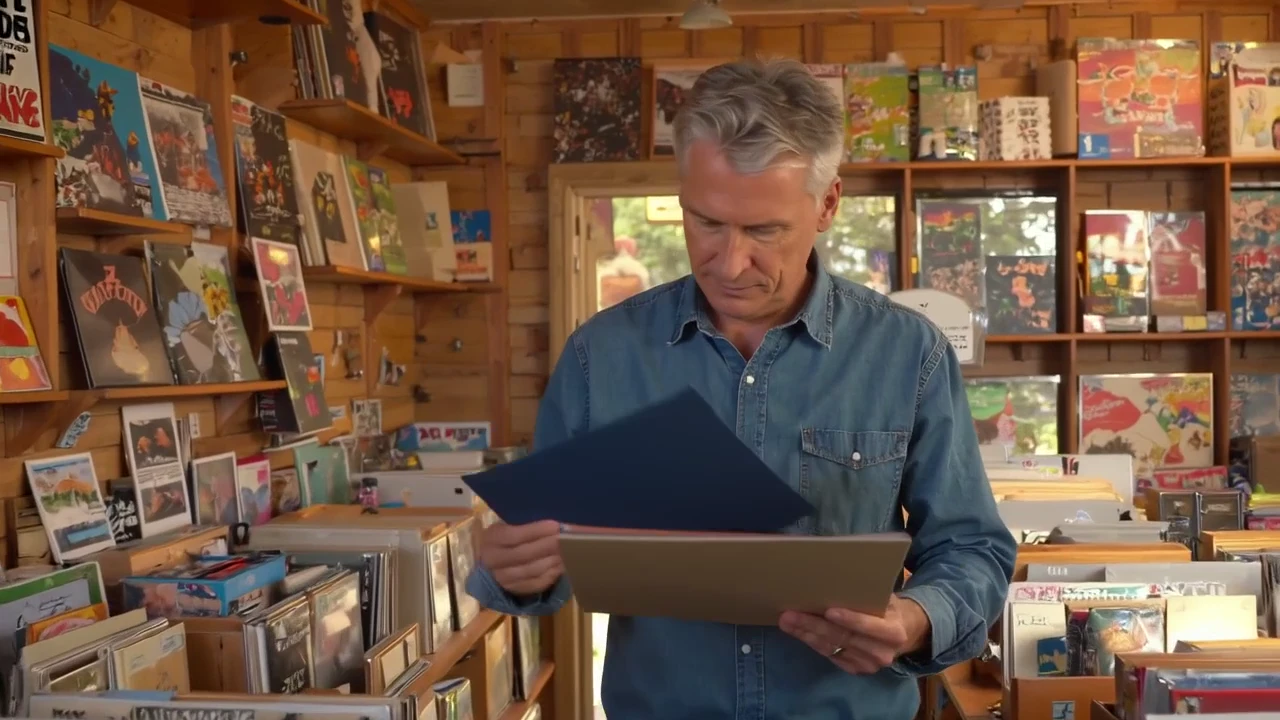
The first scene follows the owner selecting a plain blue sleeve before delivering the spoken line.
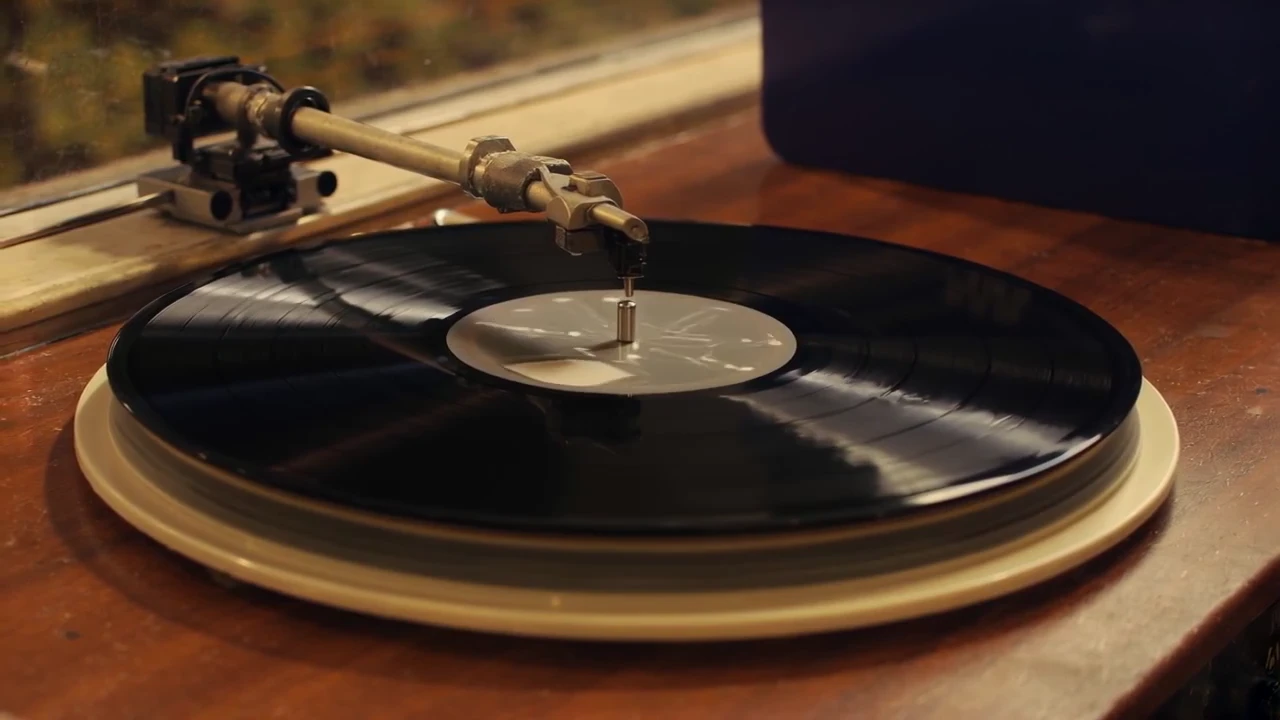
The second scene closes on the record spinning beneath the tonearm, leaving time for the soundtrack.
A record-shop owner chooses a sleeve and speaks to camera before the scene moves to a turning record. Two original shots become a 20-second film with native speech and a generated soundtrack.
Shot 1 An original 10-second opening of a record-store brand film with native synchronized dialogue and sound. Adult male shopkeeper with close-cropped gray hair, denim shirt, in a cozy independent vinyl store with warm wooden shelves. He flips through plain colorful record sleeves, chooses one midnight-blue sleeve, smiles at camera and says naturally "Some things deserve another spin." Medium shot moving to hand close-up; believable fingers, record sleeve, warm afternoon light. Original soft jazz atmosphere, sleeve rustle. No brand logos, no readable text, no subtitles, no watermark. Shot 2 An original 10-second conclusion to a warm record-store film, cinematic close-ups with synchronized sound. On a walnut counter in a cozy record store, adult hands carefully place a black vinyl record on a simple unbranded cream turntable, move the tonearm and gently lower the needle. The record begins rotating at a physically consistent speed. Camera settles on the spinning vinyl in a shaft of warm afternoon light, midnight-blue sleeve in background; hold the final shot two seconds. Audio: gentle needle contact, subtle vinyl crackle resolving into a short original warm jazz piano phrase. No speech, brands, readable text, subtitles or watermark.
Two original LTX 2.5 Pro shots, trimmed and edited into a 20-second film. Native audio retained and playback loudness normalized.
Three steps in the studio. Open any screenshot to see the controls at full size.
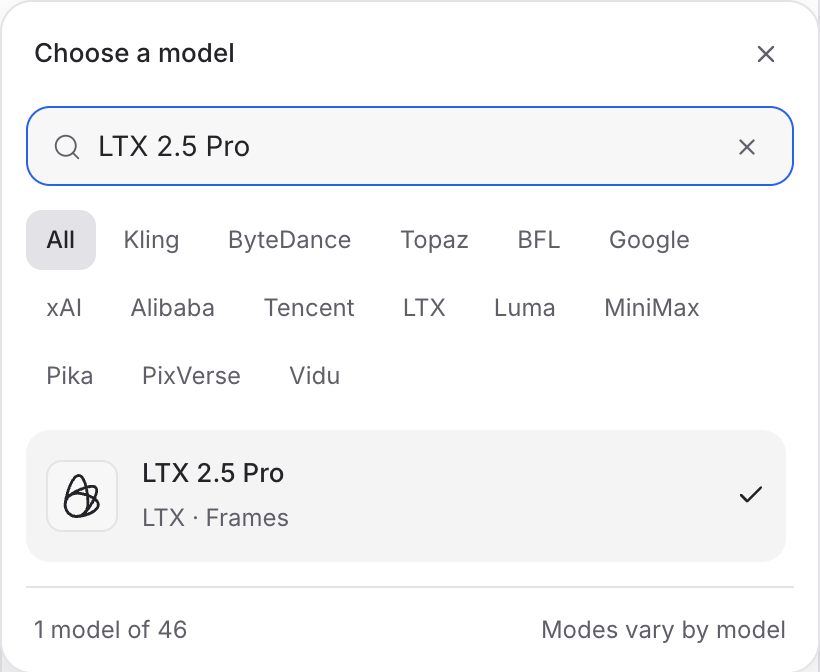
Open Video Studio, search for LTX 2.5 Pro and select it. Choose the input mode that matches your starting material.
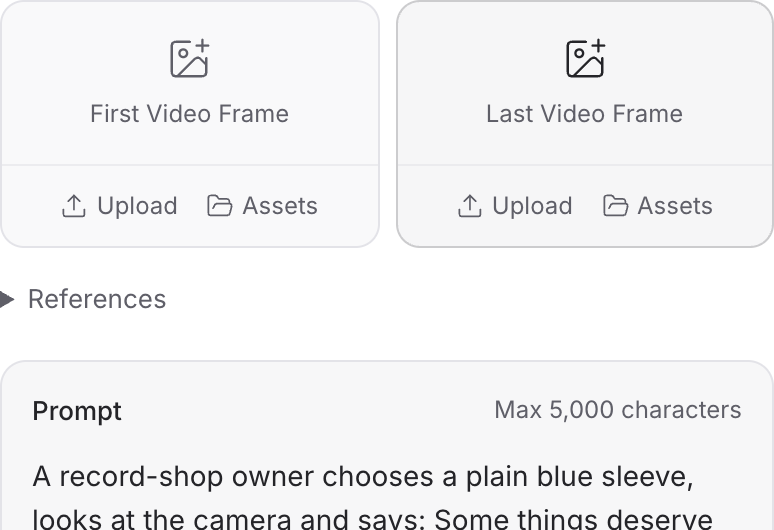
Describe the action, camera movement and ending. Add the images or other references required by your chosen mode.
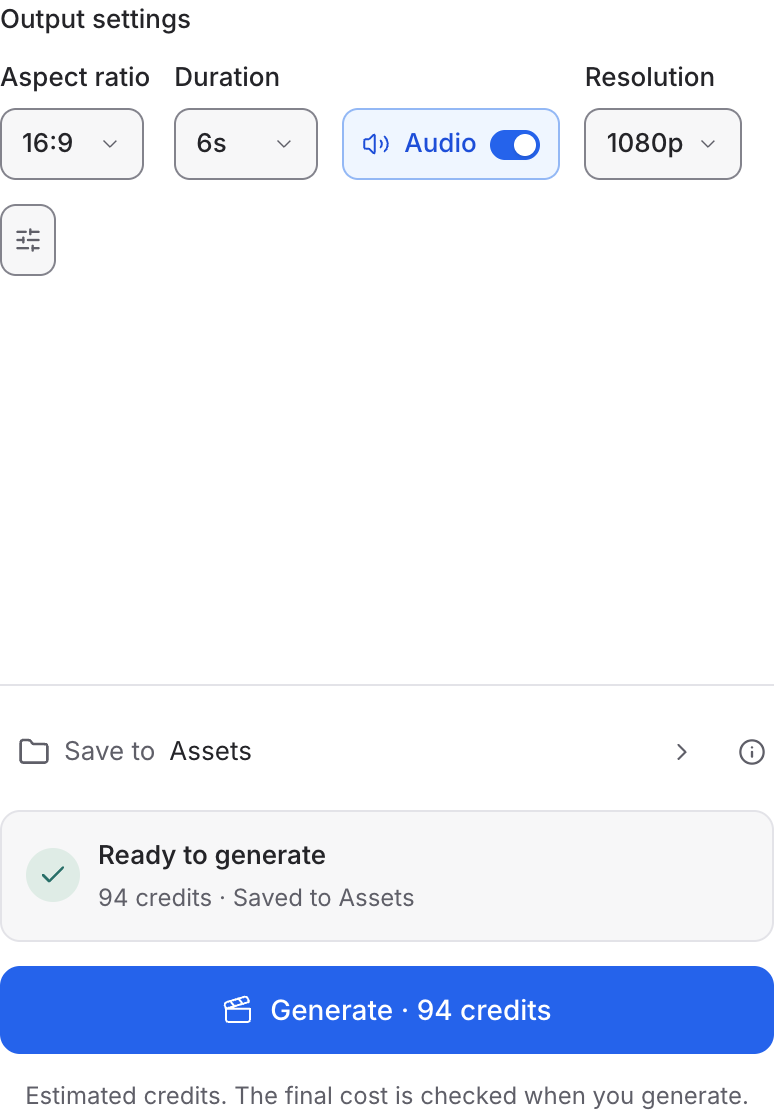
Set the available format and duration controls. Enable Audio when offered, review the credit quote and click Generate. Play the result with sound.
Choose a mode below to see supported media and creative controls, then open that profile in Mozify.
Supply audio and the other media required by the profile. Describe the visual scene, then assess its timing against the sound.
Open this mode in Mozify ↗Use this suggested exercise to start your own generation. The gallery above shows separately recorded outputs.
A suggested exercise to run in your workspace.
Select Audio, provide the supported media inputs and describe the visible scene. Judge timing in the result rather than assuming exact synchronization.
Frames accepts an image and an end-image input. Describe the action between the compositions.
Text and Frames include camera-motion, frame-rate and generated-audio controls. Choose the values available in the workspace before quoting.
Featured in the Mozify studios.
Guide video with image, video and audio references.
Generate clips, edit footage and reuse references.
Create shots, connect frames and extend videos.
Create video from text, frames or media references.
Build short scenes from text and references.
Create video from prompts, frames or media references.
Create clips, edit footage and change framing.
Open a guide to explore the inputs and a practical brief. Current availability and credit quotes are shown in your workspace.
Open the Video studio and check the model picker for LTX 2.5 Pro. Select an enabled profile, add its required inputs and review the quote before running.
Bring your product, your brief or your next big idea. Start creating in Mozify.
Explore free, no card required. A paid plan is required to generate and export.


